
What this guide covers
This guide covers deposits of USDT using the ERC-20 standard on the Ethereum network — the workflow demonstrated in the recordings and shown on Kafel's own deposit screen. Follow it with that combination and no other: a transfer sent on a different network will not arrive at this address. If you want to deposit something else, check what your Kafel app offers before you send anything.
What you need before you start
-
A phone with an internet connection
iPhone or Android. The screenshots in this guide come from an Android phone; the iPhone screens carry the same labels.
-
A Kafel account you can sign in to
You will need to open the Kafel app and reach its Deposit screen.
-
A MetaMask wallet — for Method 1 only
New or existing, with its recovery phrase stored somewhere safe. Method 2 needs no wallet at all.
-
A USDT balance on the Ethereum network
Either in your wallet or in your exchange account. This is the same currency and network on both routes.
-
Enough to cover the network fee
On Method 1 the fee is paid in ETH from your wallet. On Method 2 it is deducted from the amount you withdraw.
One rule that comes before everything else
Your Secret Recovery Phrase is never needed by anyone but you. Nobody — not Kafel, not your wallet, not the exchange — has any reason to ask for it, and anyone who does is trying to take your money.
Verification codes are different, so know the difference. Typing a code into the exchange's own app or website, on a screen you opened yourself, is an ordinary part of signing in and withdrawing. Telling a code to a person — reading it out on a call, sending it in a chat, typing it into a page someone linked you to — is how accounts get taken. Codes are for your screen, never for another human.
Two ways to deposit
Pick the route that matches where your money is right now. The steps after that are completely separate — you do not need to read both.
| Question | Method 1 · MetaMask wallet | Method 2 · From an exchange |
|---|---|---|
| Where your money is now | In a wallet on your phone | In your account on the exchange |
| Do you need to install a wallet? | Yes | No |
| How Kafel learns about the deposit | Automatically, through the wallet connection | You enter the transaction hash yourself |
| Who pays the network fee | You, in ETH from your wallet | Deducted from the USDT you withdraw |
| Where you review before confirming | On MetaMask's confirmation screen | On the exchange's withdrawal screen |
Go with Method 1 if…
you already hold USDT in MetaMask, or you want Kafel to register the deposit for you without copying anything by hand. Start at step 03.
Go with Method 2 if…
your balance sits on an exchange and you would rather not install a wallet at all. Jump to step 16.
Depositing with a MetaMask wallet
Install the wallet, set it up, connect it to Kafel and confirm one transaction. Steps 03 to 15. The screenshots come from a real deposit recorded on an Android phone.
Install MetaMask on iPhone
Always start from the official download page, never from a link that arrives in a message or an advert.
-
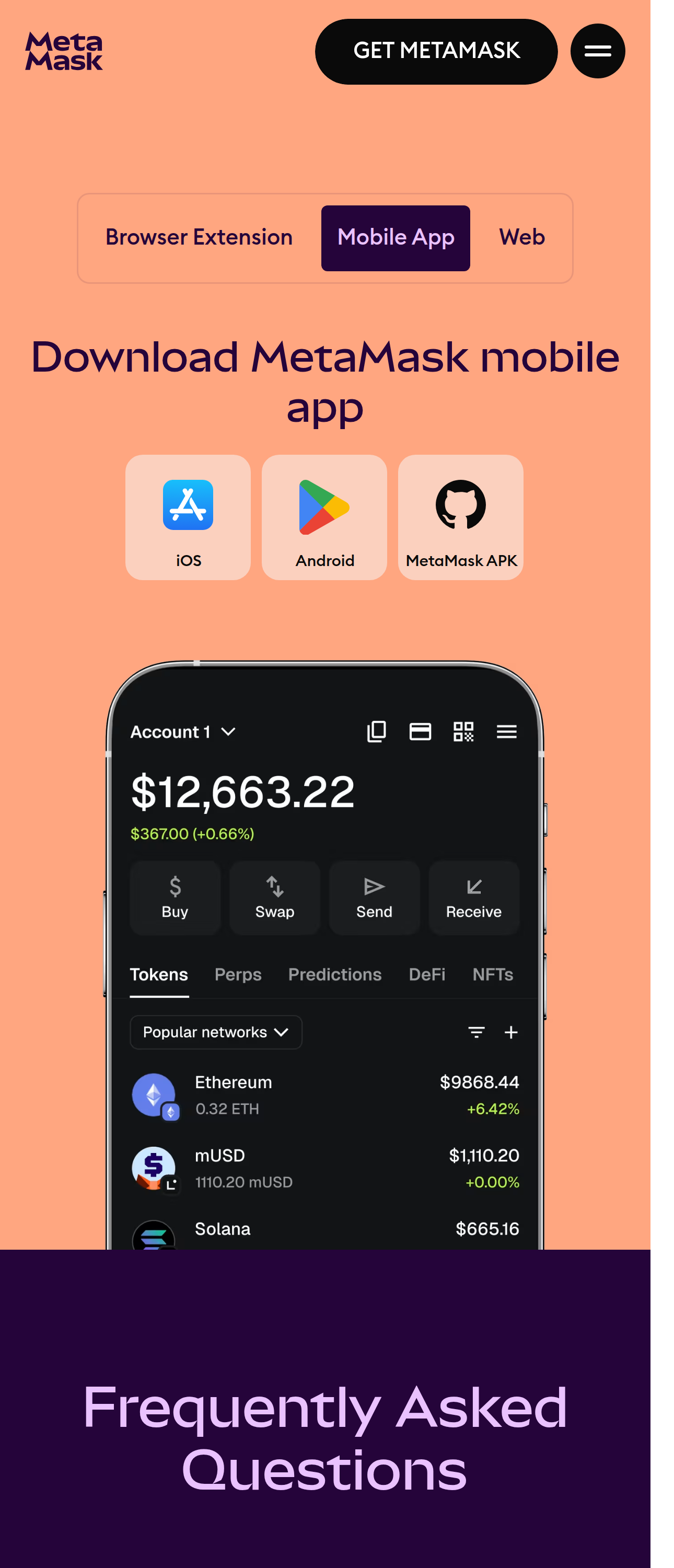
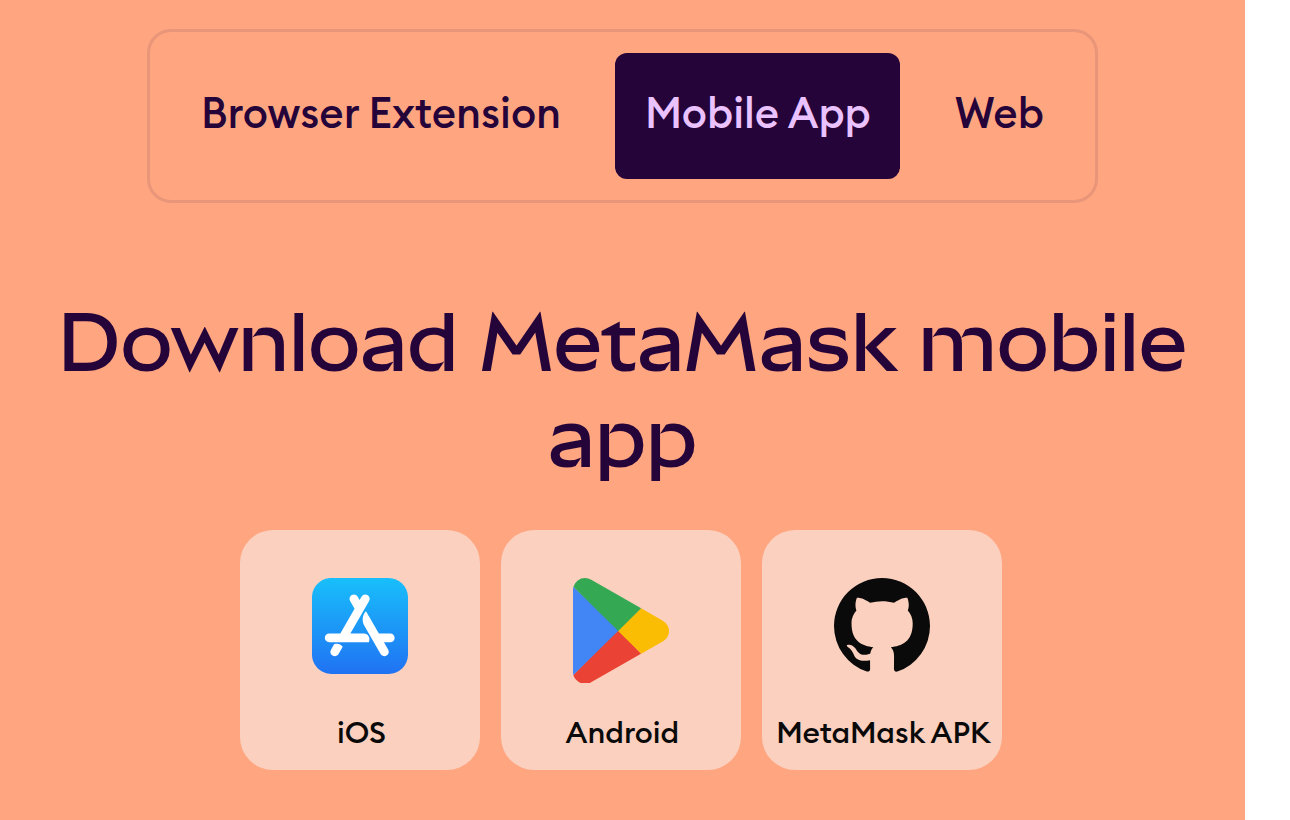
Open the official download page
In your phone's browser go to metamask.io/download, choose Mobile App and then iOS. That takes you straight to the App Store listing.
-
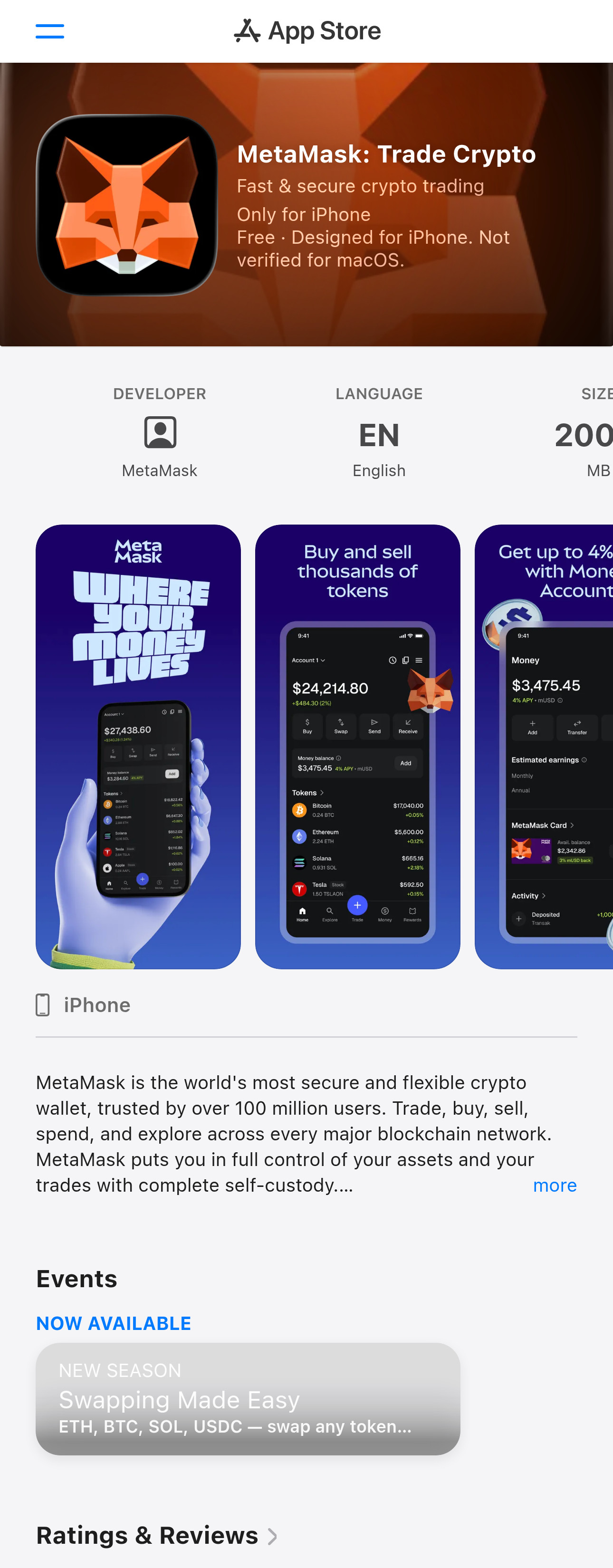
Check the listing before you install
On the store page, look at the DEVELOPER row and confirm the publisher is MetaMask — and that this is the same page the official link sent you to. The app's display name changes between releases; while this guide was written it read MetaMask: Trade Crypto.
-
Install it, then open it
Tap the install button — it appears as Get on the App Store, or as a cloud icon if you have downloaded the app before. The app is free. When the install finishes, tap Open.
Install MetaMask on Android
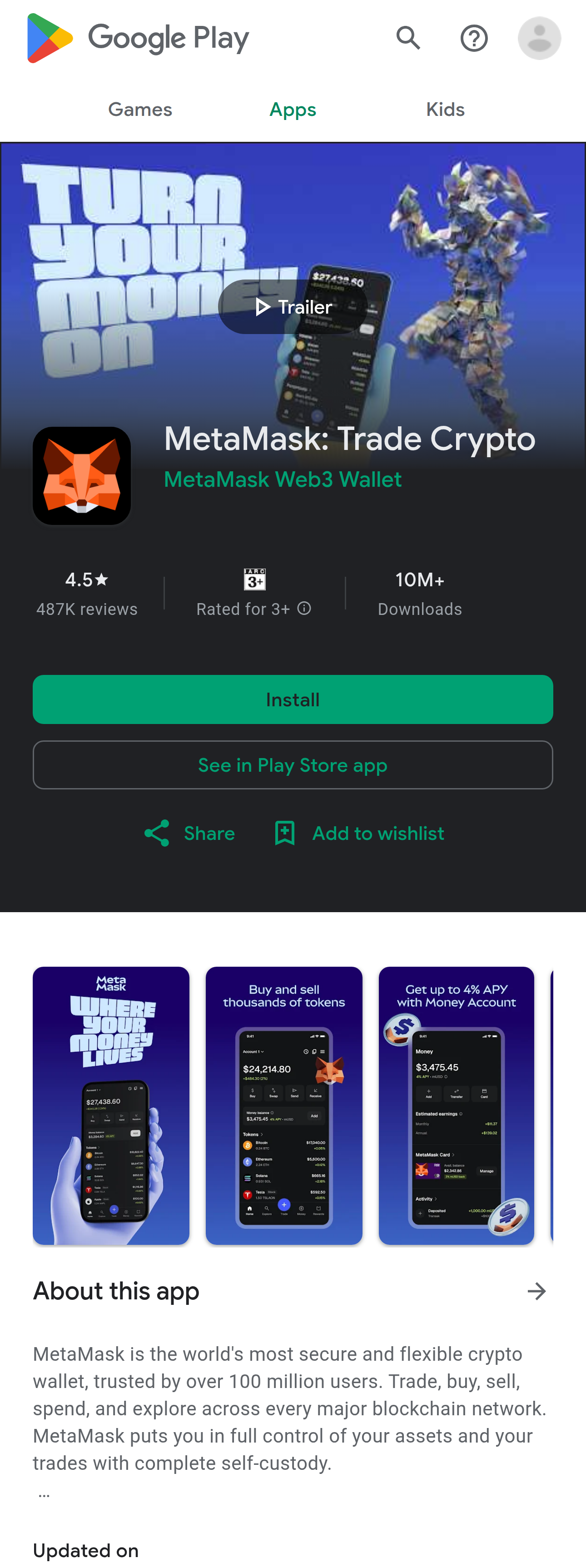
The steps are the same. The store is Google Play, and the starting point is still the official download page.
-
Start from the official link
Open metamask.io/download, choose Mobile App then Android — or go directly to play.google.com/store/apps/details?id=io.metamask.
-
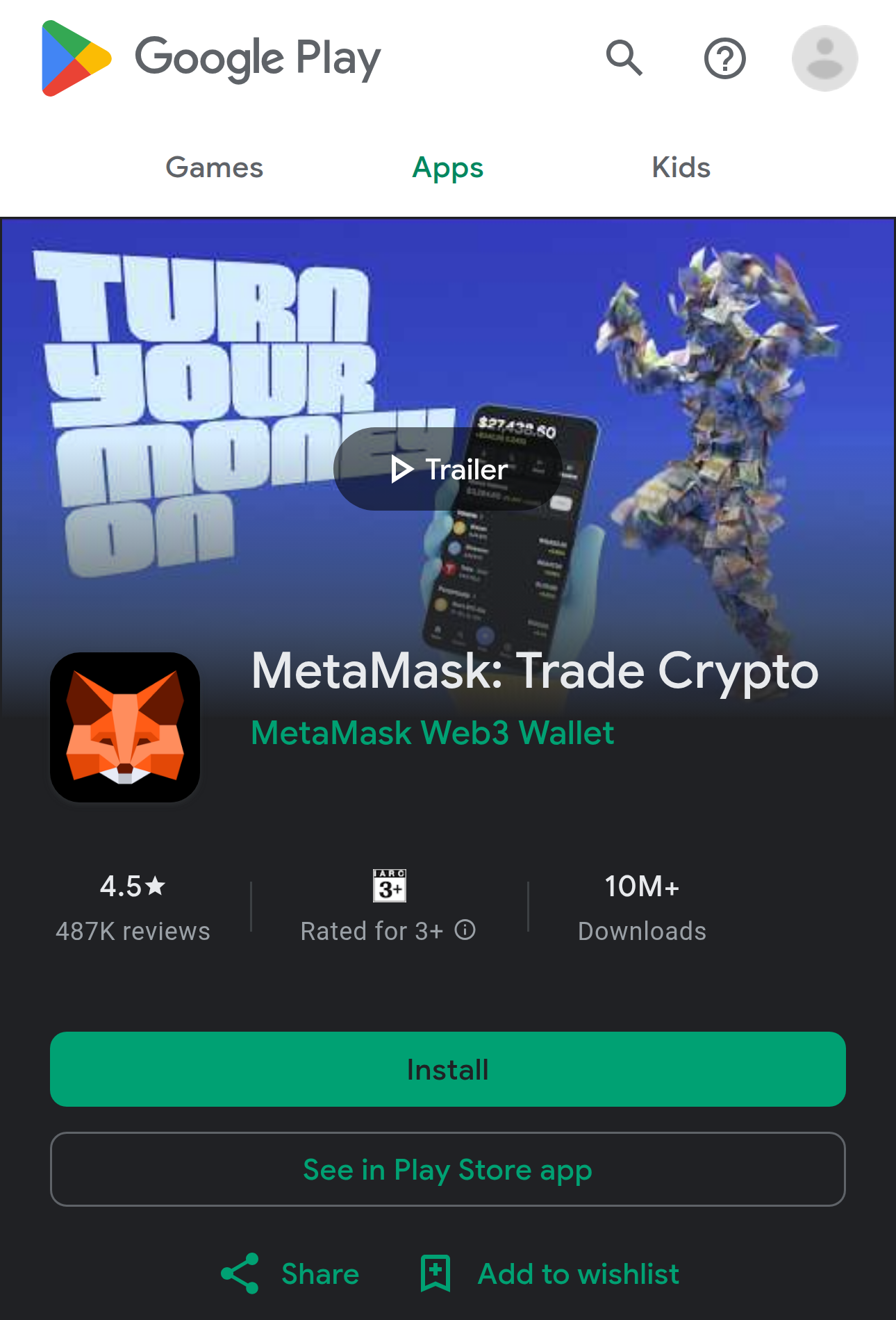
Check the publisher and the package id
The publisher shown under the app name is MetaMask Web3 Wallet, and the package id at the end of the page's address is io.metamask. The package id is the more reliable of the two, because the display name changes between releases.
-
Install it, then open it
Tap Install, wait for the download to finish, then tap Open.
Create or restore a wallet
The first time you open MetaMask it asks whether you want to create a new wallet or use one you already have. Choose, then read step 06 before you finish.
Choose Create a new wallet
MetaMask then asks how you want to secure the wallet and get back into it:
-
A Secret Recovery Phrase
Twelve English words that you keep offline. You, and only you, hold them. This is the route on the mobile app, and it is the one this guide follows.
-
A social account — browser extension only
MetaMask also offers securing a wallet with a Google, Apple or Telegram account plus a password, where you need both to unlock it. Its documentation marks this option “(Extension only)”, so do not expect it on the phone app this guide is about.
Screens change between releases — follow what your own screen shows, and check support.metamask.io/start/creating-a-new-wallet for what is offered on your platform today.
Choose I have an existing wallet
Then pick whichever way you originally secured it:
-
Your Secret Recovery Phrase
Entering the phrase restores the wallet with all of its accounts. A single account can also be imported using its private key. On the phone app this is the route.
-
Your social account — browser extension only
If you secured the wallet with Google, Apple or Telegram, you sign in and enter your MetaMask password. That option is documented as extension-only, so a wallet created that way is reached on the phone through its recovery phrase.
If you have lost the account or the password and you did not keep the recovery phrase, nobody — MetaMask included — can give the wallet back to you.
Once setup is finished
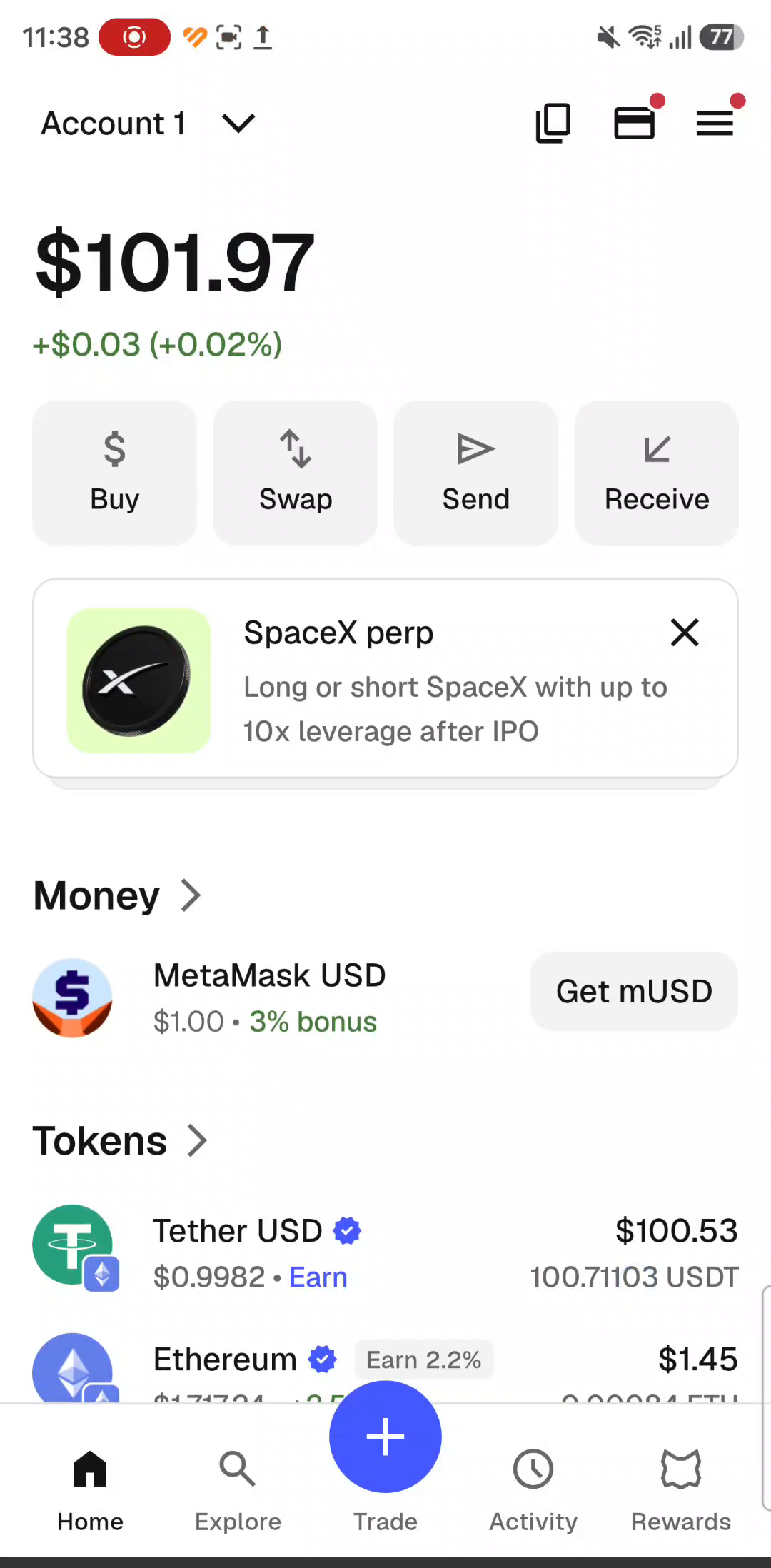
This is the screen you will come back to every time. It shows the wallet's total value in dollars, the action buttons, and the list of currencies you hold.
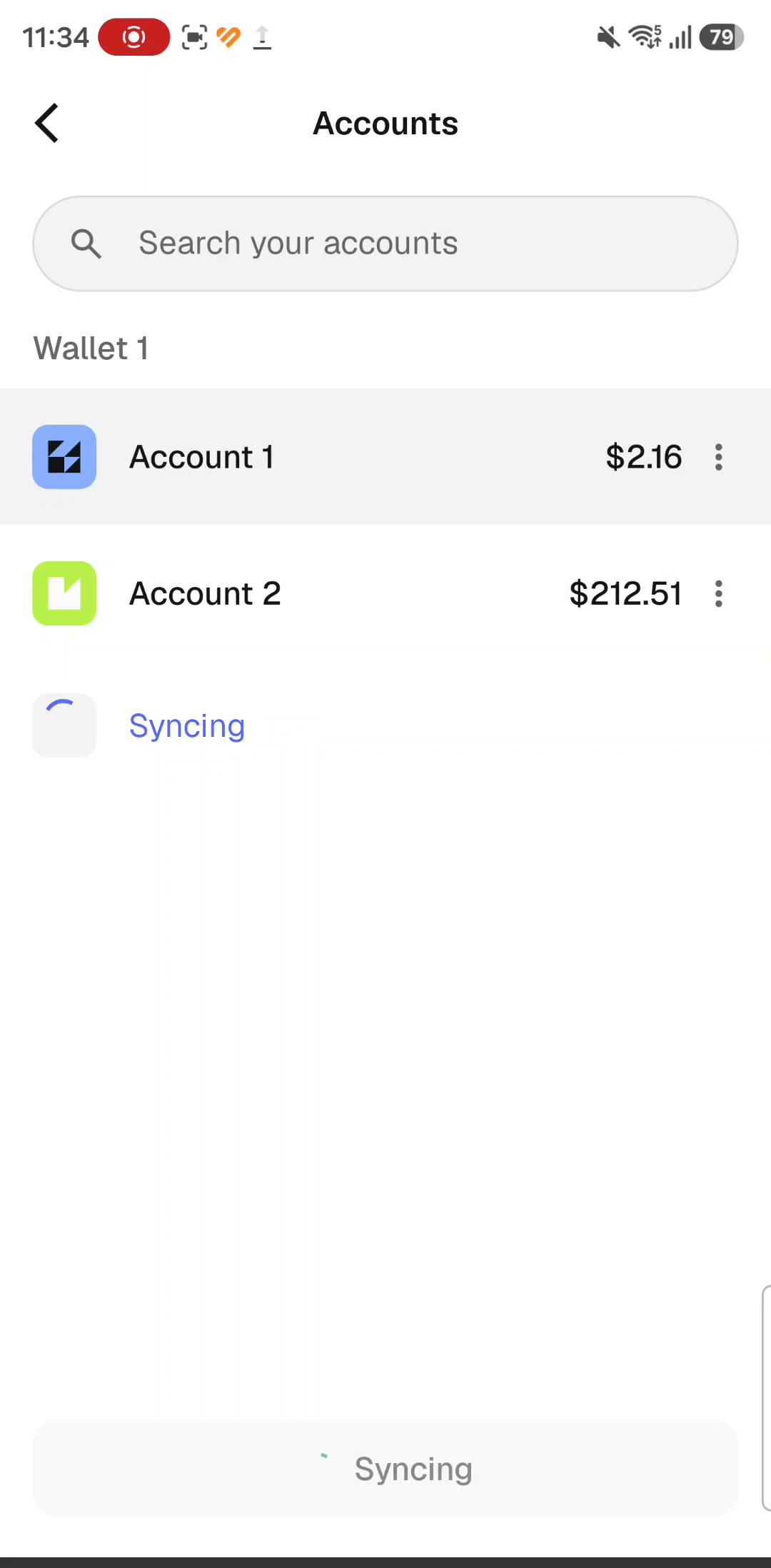
A wallet can hold more than one account, and it matters which one is carrying your balance — you will need to pick it deliberately when you connect to Kafel in step 10.
Protect your recovery phrase
A Secret Recovery Phrase is twelve English words generated when your wallet is created. Whoever holds those words holds the wallet and everything in it. This is the most important page in this guide.
What is it?
The master key to the whole wallet. It restores your accounts on any device, even if your phone is lost.
How is it different from a password?
The password unlocks the app on this one device. The recovery phrase rebuilds the wallet anywhere.
And the private key?
A Private key controls a single account. The recovery phrase controls all of them.
Do
- Write it on paper by hand and store it somewhere safe that other people cannot reach.
- Check the spelling and the order of every word before you finish setup.
- Keep it in the original English, without translating it.
- If you set the wallet up with a social account in the browser extension, reveal the phrase and save it anyway — it is your only way back if you lose the account or the password, and the only way to open that wallet on a phone.
Do not
- Share it with anyone — not with MetaMask's team, not with Kafel's. Neither will ever ask.
- Store it in cloud storage, a password manager or your phone's notes.
- Photograph it, or send it in a chat, even to yourself.
- Type it into any site or app that offers to recover your funds or provide technical support.
Two questions before you carry on
1. Could you get to your recovery phrase right now, without your phone?
2. Is it stored somewhere nobody else can reach, and not connected to the internet?
If the answer to either is no, stop and store the phrase properly before you deposit anything.
Get the asset, network and fees ready
Kafel's deposit screen states the currency and the network it expects. This guide follows one combination only — and no other mix will work.
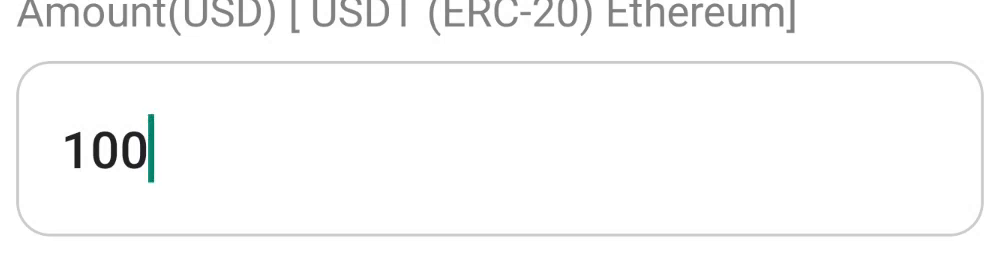
What that line means
- USDT
- A digital currency whose value tracks the US dollar. This is the money you actually deposit.
- ERC-20
- The technical standard for currencies on the Ethereum network. It is how Kafel recognises the token.
- Ethereum
- The network the transaction travels over. On this route there is no alternative to it.
The deposit and the fee are two different things
-
The deposit — paid in USDT
Whatever you type into the amount box. This is what reaches your Kafel balance.
-
The network fee — paid in ETH
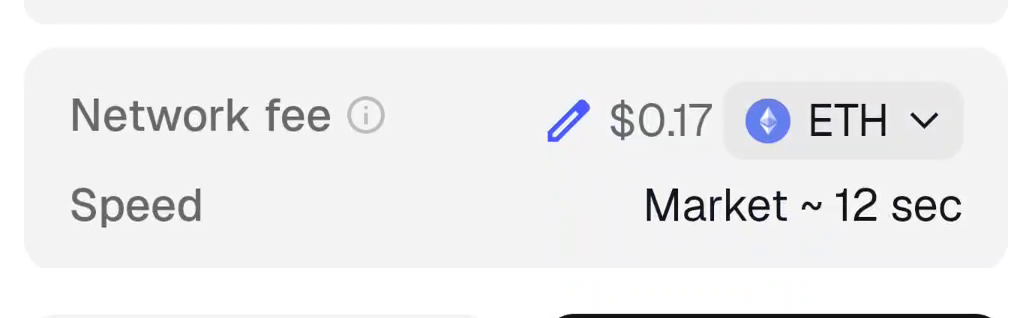
Paid to the Ethereum network for carrying out the transaction — not to Kafel and not to MetaMask. On the confirmation screen it appears as Network fee.
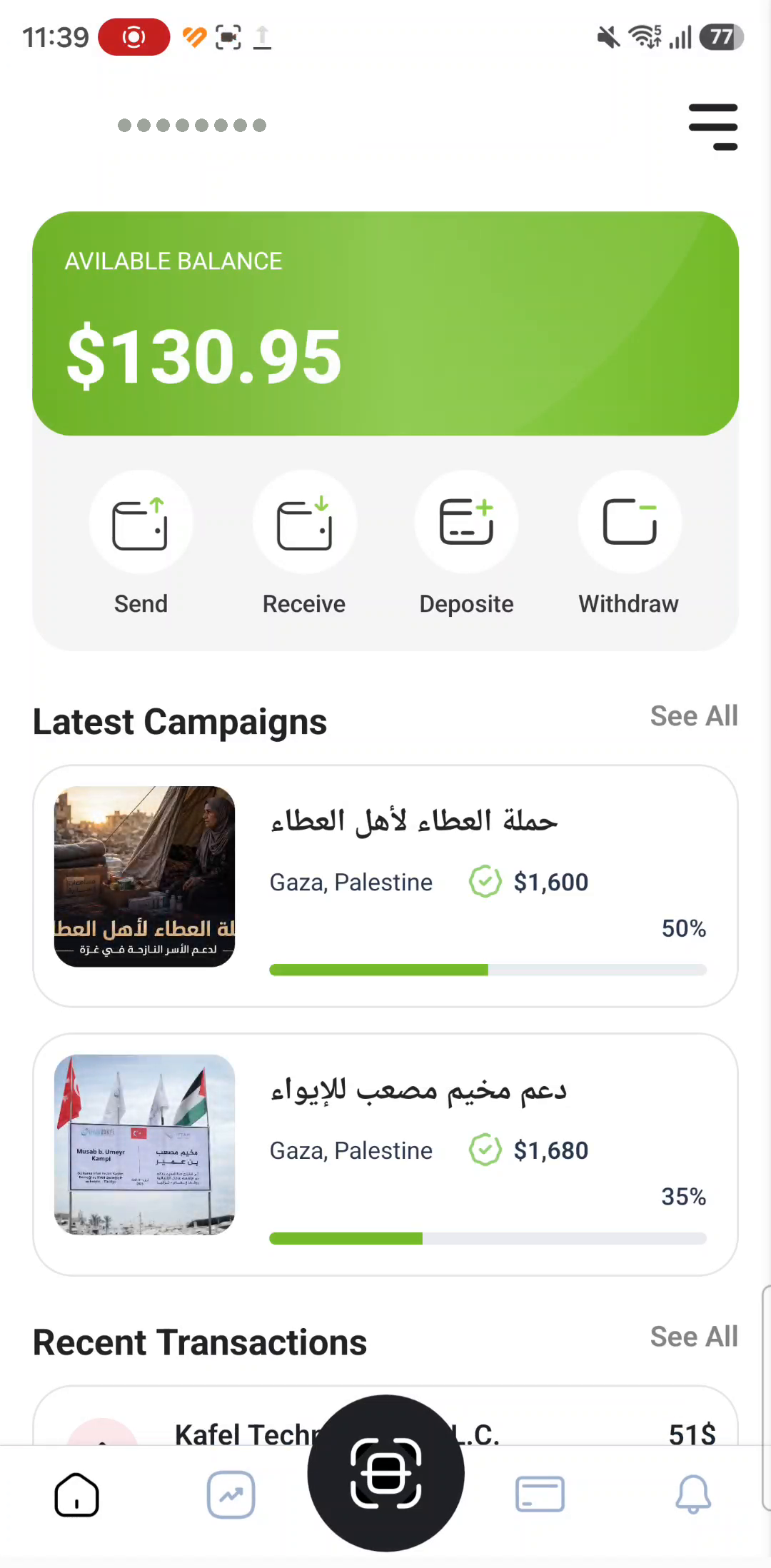
Open the deposit screen in Kafel
From the home screen it is one tap to the Deposit page.
-
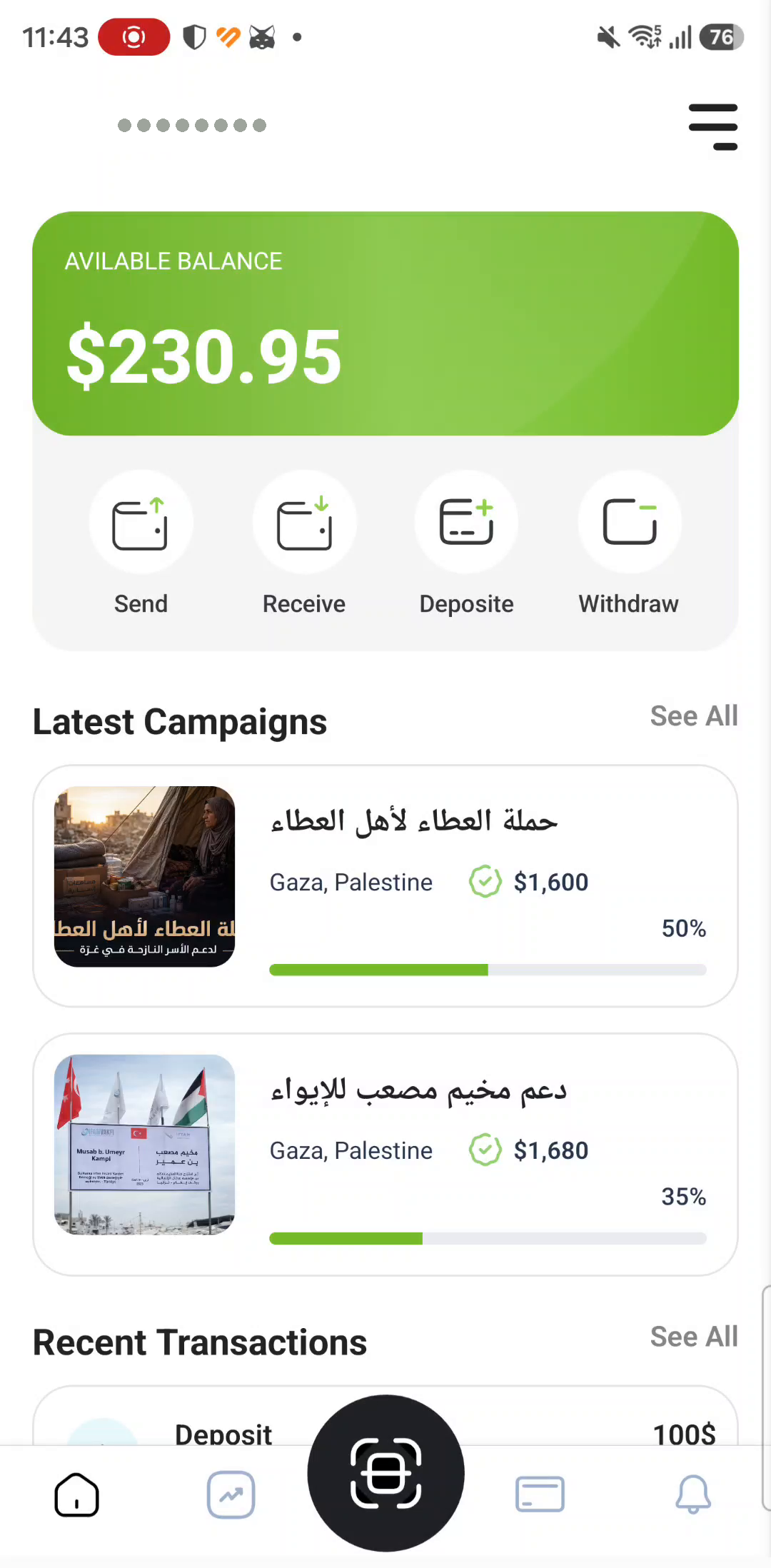
Note your current balance
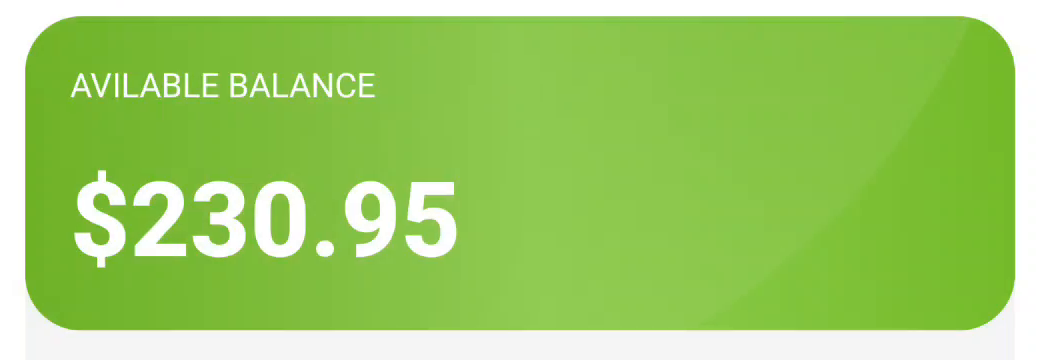
The green card at the top of the screen shows what is available, under the heading AVILABLE BALANCE — spelled that way in the app. Write the figure down so you can compare it afterwards.
-
Tap Deposite
The third of the four buttons under the card, between Receive and Withdraw. The app spells it Deposite.
-
Get to know the deposit screen
Only three things on it concern you: the currency line, the amount box, and the Connect Wallet button.
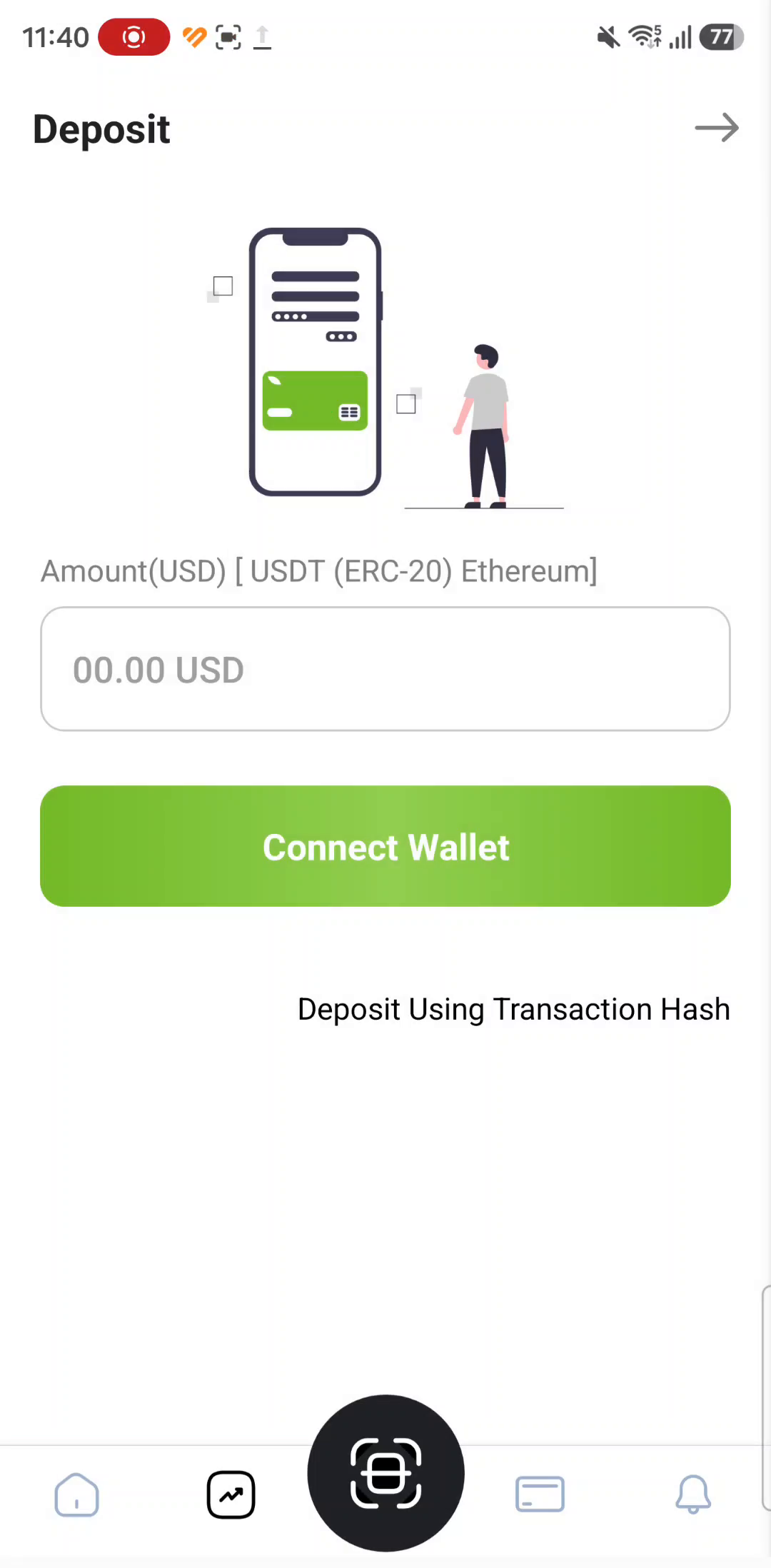
What about Deposit Using Transaction Hash?
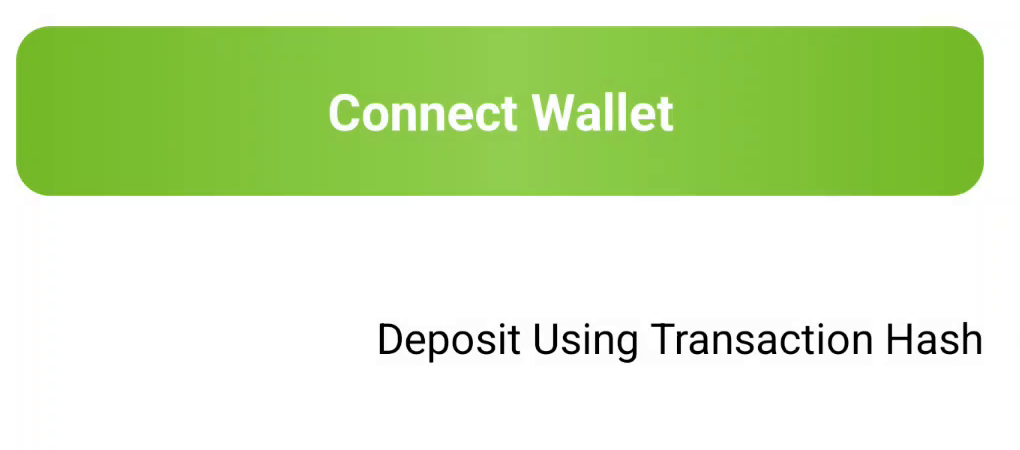
The alternative underneath the green button. It records a deposit you sent from outside the app, using its transaction number. That is exactly what Method 2 does — see step 20.
The language chooser on first launch
Kafel asks for a language the first time it opens, offering EN, AR and TR. The screenshots here use the English interface, matching the recording.
Connect your wallet
Connecting tells Kafel your wallet's address. It does not give Kafel permission to move your money, and it never asks for your recovery phrase.
-
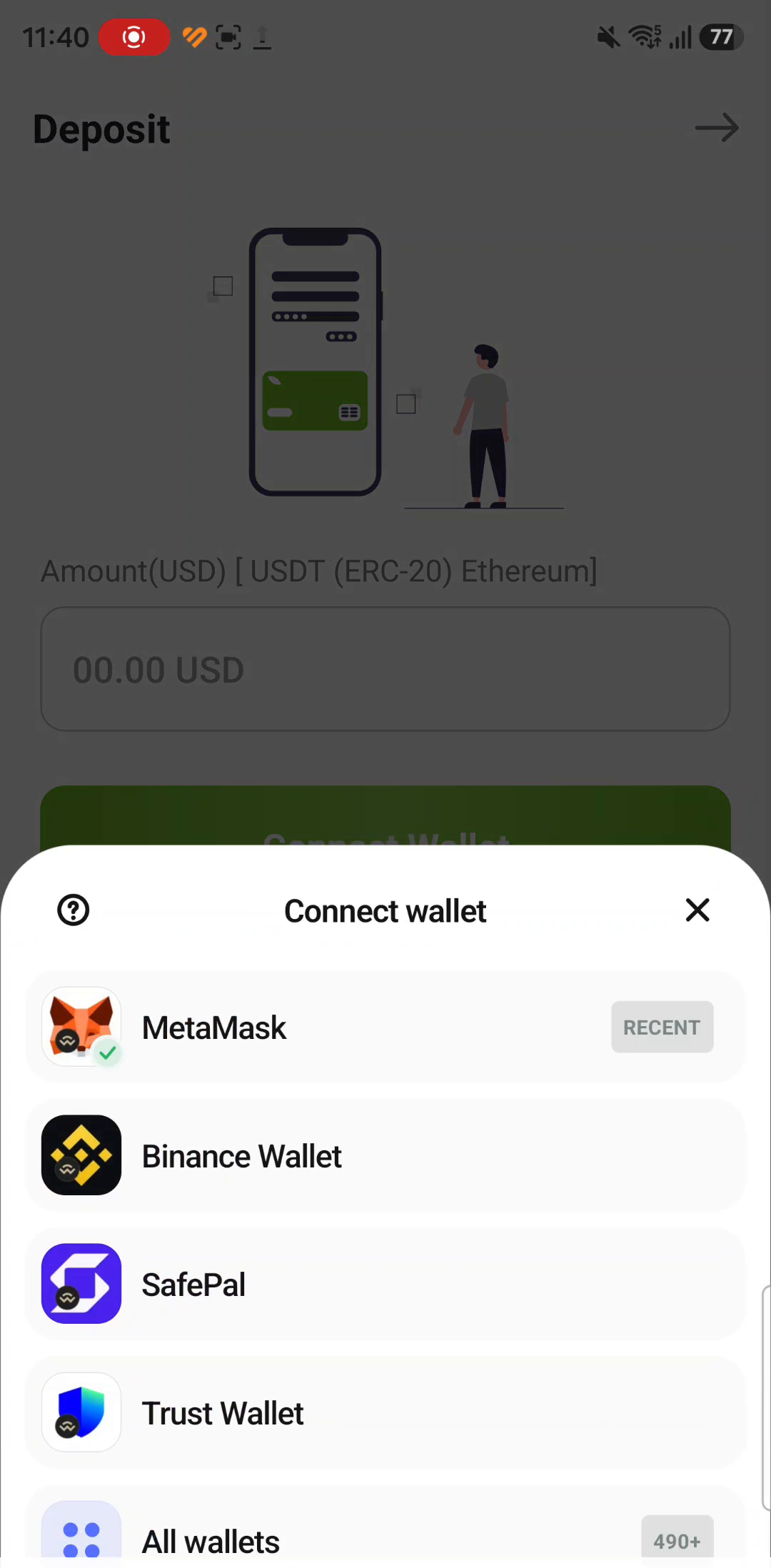
Tap Connect Wallet
The green button in the middle of the deposit screen.
-
Choose MetaMask from the list
A Connect wallet sheet opens with the supported wallets. MetaMask is at the top and carries a RECENT tag if you have used it before.
-
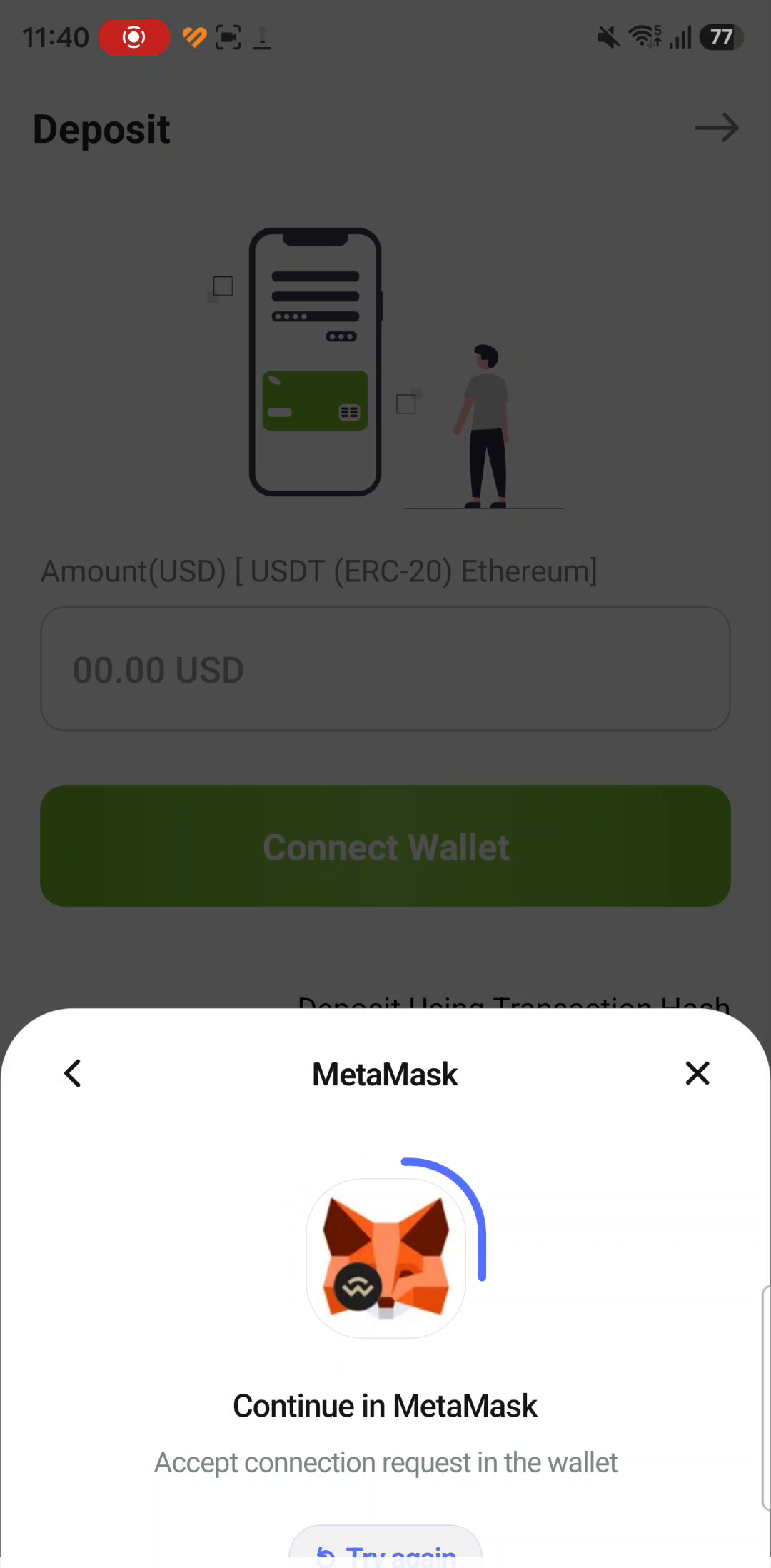
Move across to MetaMask
A message appears reading Continue in MetaMask with the line Accept connection request in the wallet. MetaMask then opens by itself.
MetaMask is not in the list?
Check that it is installed on this same phone and that you have opened it at least once. The list also offers All wallets for other wallets.
What Kafel sees afterwards
Your public wallet address, and nothing more. It appears in the Your Wallet Address field on the next screen.
Choose an account and approve the connection
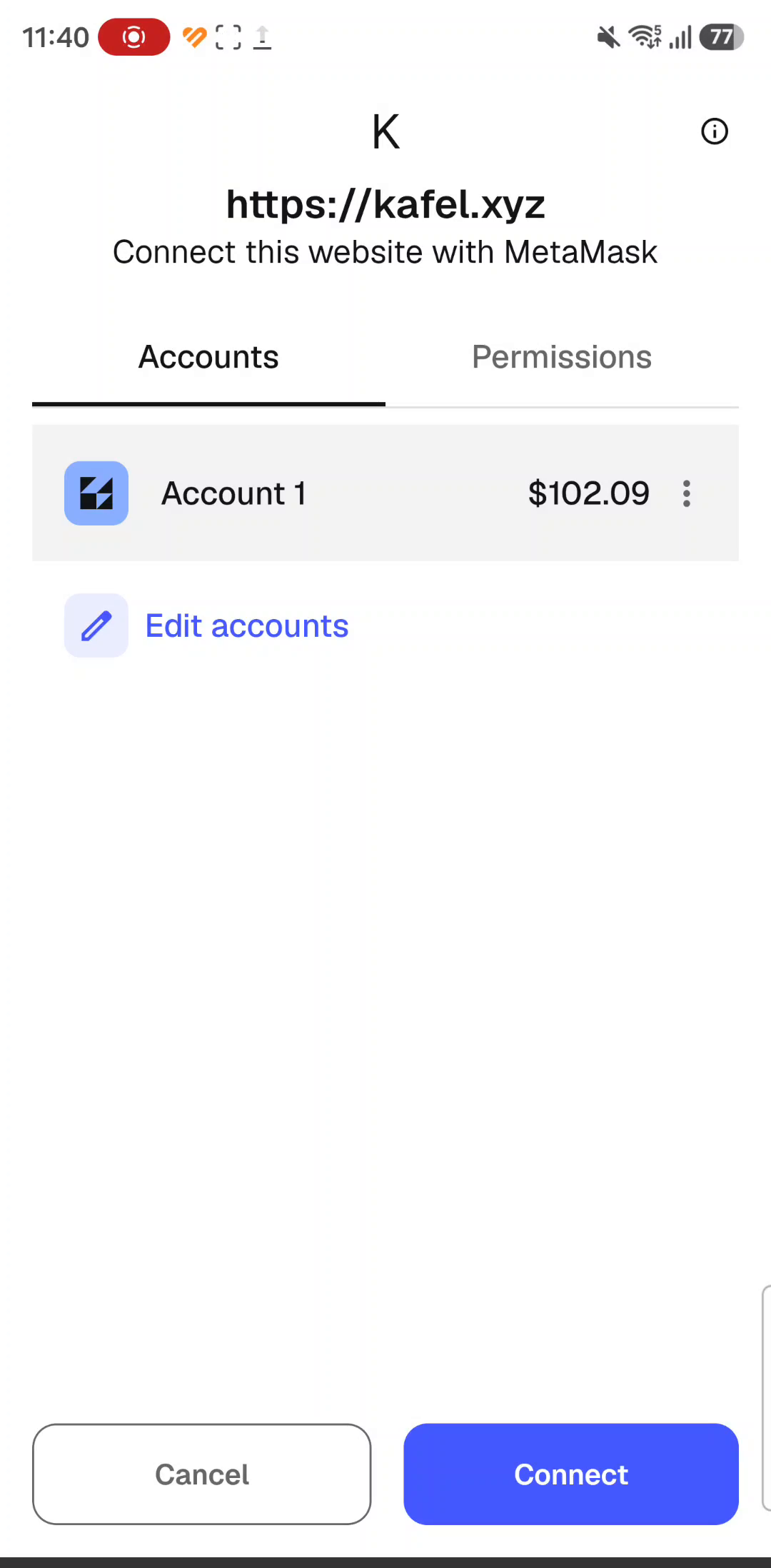
MetaMask shows the connection request. Read it before you tap — it tells you exactly who is asking, and with which account.
-
Check the site address
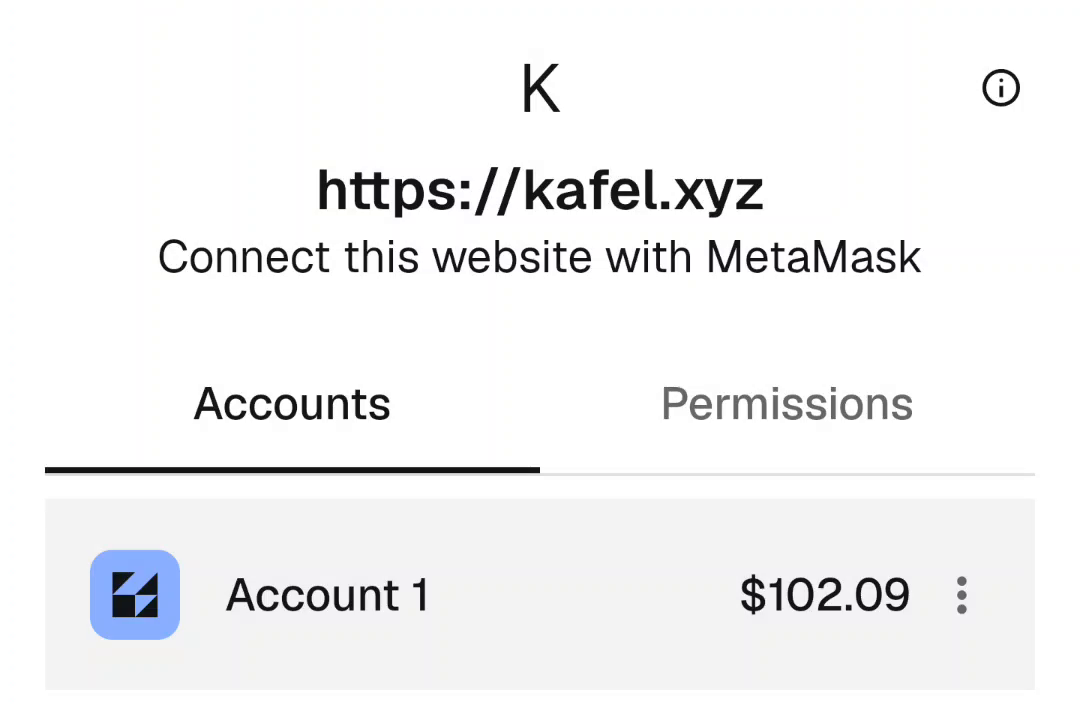
It appears at the top, under the line Connect this website with MetaMask. In the recording it reads https://kafel.xyz. If you see an address you do not recognise, or one that is close to a familiar name but not quite it, tap Cancel.
-
Pick the right account
Under the Accounts tab, choose the account that holds your USDT — its dollar balance is shown beside it. To change the selection, tap Edit accounts.
-
Review, then tap Connect
The Permissions tab lists what the site is asking for. If anything is unclear, tap Cancel — you can always try again later.
Enter the amount
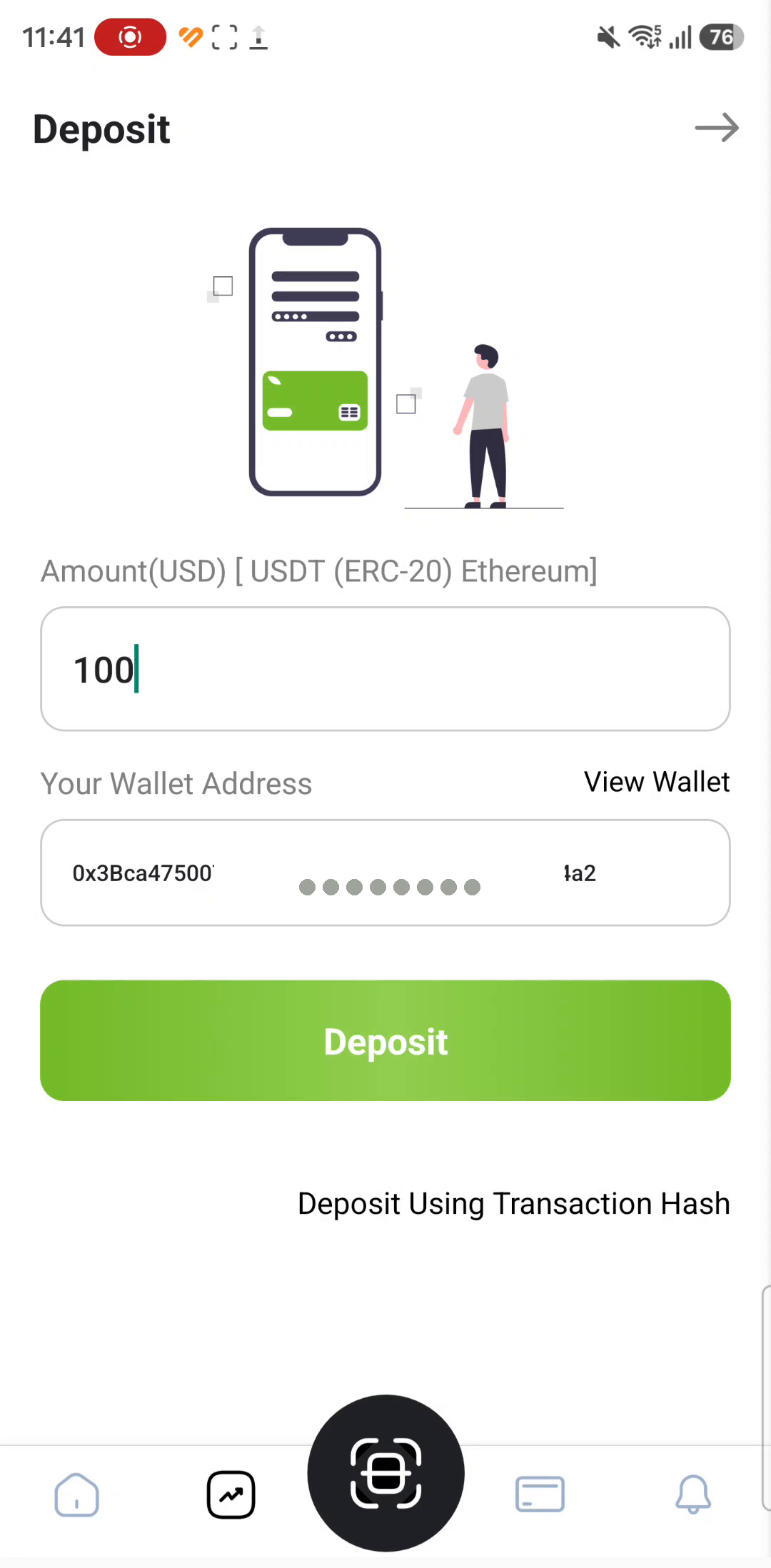
Once the connection succeeds the deposit screen changes: your wallet address appears, and the green button becomes Deposit.
-
Type the amount
Enter it in dollars in the box under the Amount(USD) [ USDT (ERC-20) Ethereum ] line. The recording uses 100. Make sure your wallet's USDT balance covers it.
-
Check Your Wallet Address
The app shows the address it has connected to. Compare it against the address shown in MetaMask in full, character by character — not just the ends. If it differs anywhere, you connected the wrong account: go back to step 10.
-
Tap Deposit
This takes you to MetaMask to review and approve the transaction. Tapping here charges you nothing — nothing is deducted until you confirm inside the wallet.
What happens after you tap
01 Your phone switches to MetaMask · 02 A confirmation screen appears · 03 You review, then decide

Read the transaction request before you confirm
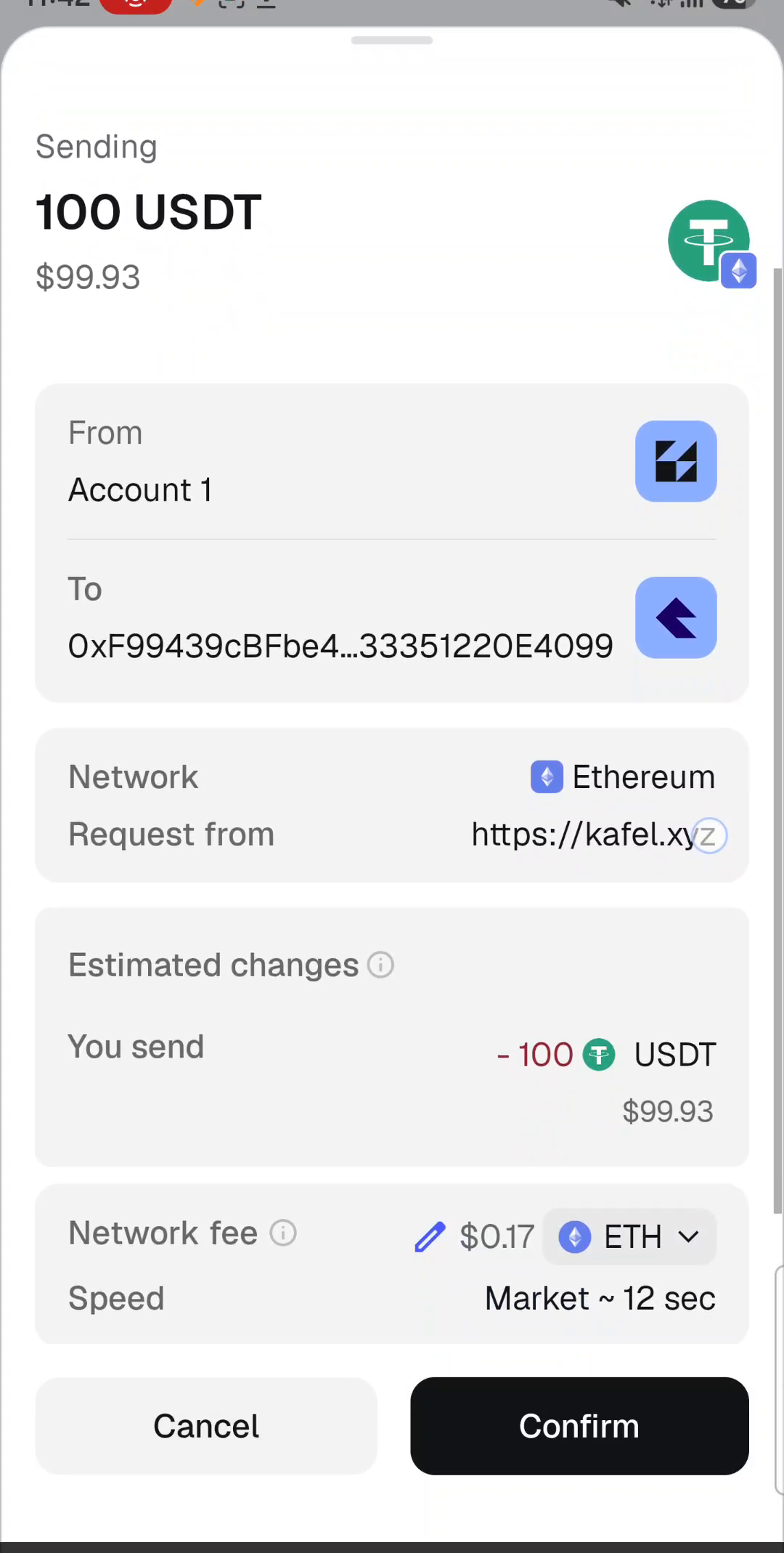
This is the last point at which you can back out. MetaMask's confirmation screen shows five things — read them all, then decide.
-
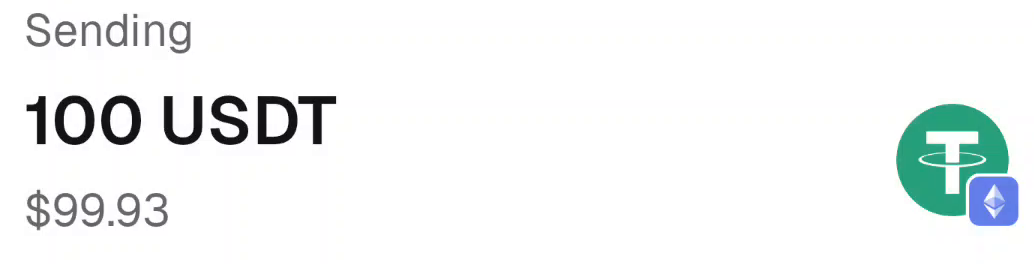
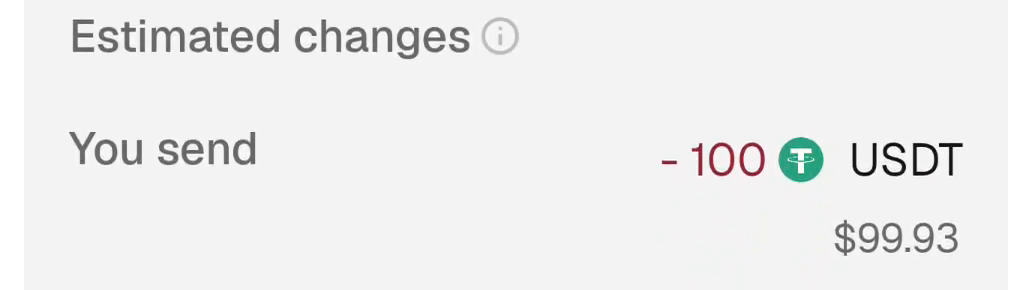
The amount and the currency
It must match what you typed into Kafel, and the currency must be USDT.
-
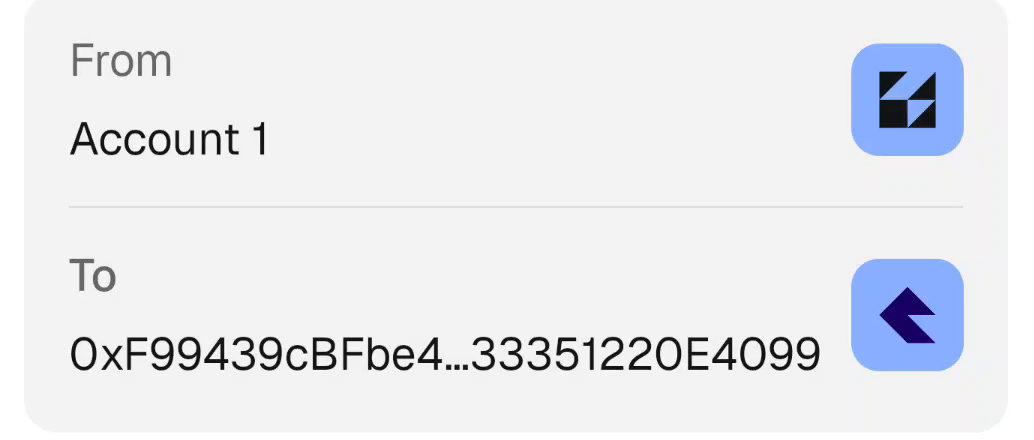
The sender and the destination
From is your account; To is the address receiving the money.
-
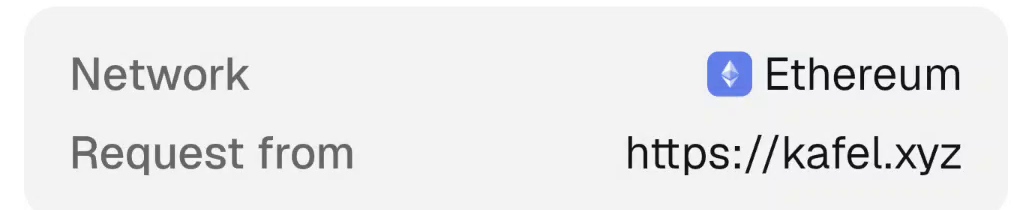
The network and the site asking
Network must read Ethereum, and Request from must be the site you are actually using.
If a security warning appears, stop
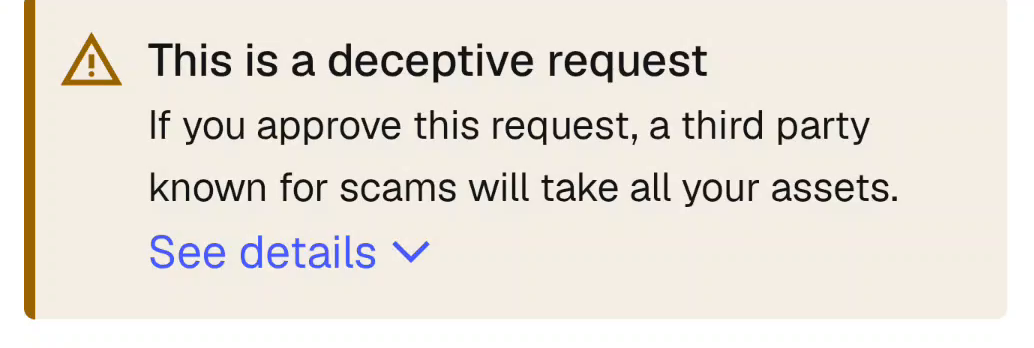
In the recording made for this guide, a warning banner appeared at the top of the confirmation screen before Confirm was pressed. It is reproduced here exactly as it appeared, along with the correct response.
The warning, word for word
“This is a deceptive request”
“If you approve this request, a third party known for scams will take all your assets.”
Followed by a See details link that expands the reason.
Where the warning comes from
MetaMask shows security alerts based on transaction analysis and security data sources, one of which is a partner called Blockaid. Alerts arrive at two levels:
- Warning — a possible risk.
- Malicious — high confidence of harm.
The alert does not technically block you from continuing — the decision stays yours — but it means the detection system has picked up signals that call for a stop.
What to do now
-
Tap Cancel
The request is dropped. Nothing is deducted from you, and you can try again once you have checked.
-
Do not retry in order to get past the warning
Repeating the request until the warning happens not to appear is not a solution. Working around a warning is not a normal step.
-
Read the request's details calmly
Compare Request from with the Kafel address you know, and check the To address, the Network and the amount.
-
Check through Kafel's official channels
Contact Kafel's support from inside the app and ask about the address and the site shown in the request. Official links are in step 22.
-
Use See details when you need it
The link expands the reason for the classification. If it turns out to be mistaken, you can report that from inside the alert or through MetaMask support.
Track the deposit
After you confirm, you are returned to Kafel and the transaction passes through four states. Each message means something different.
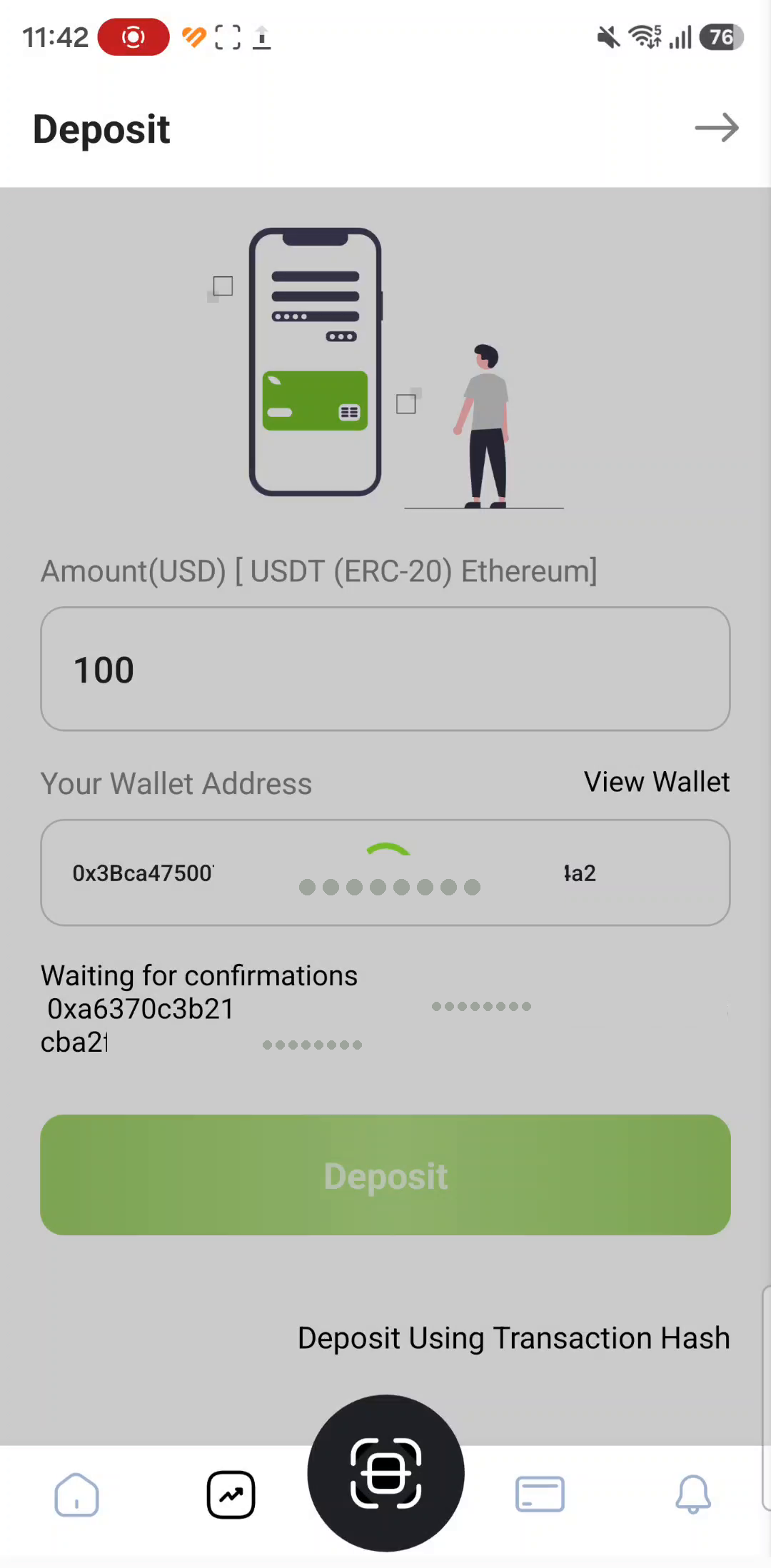
The transaction has been sent to the network, and the transaction number appears. Keep it — you will need it if you contact support. 5:23
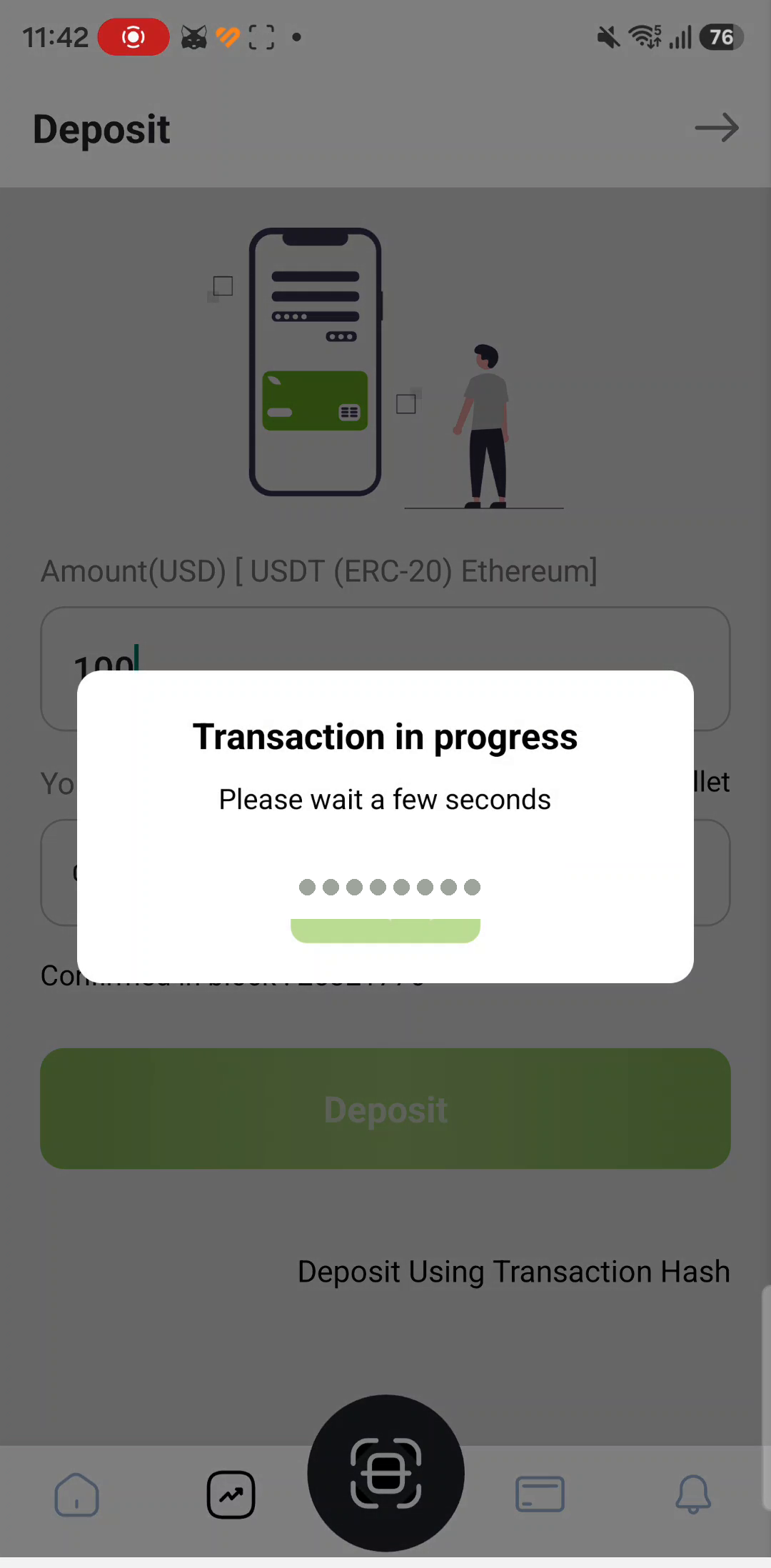
A waiting dialog with a progress bar. Leave it to finish; do not close the app. 5:29
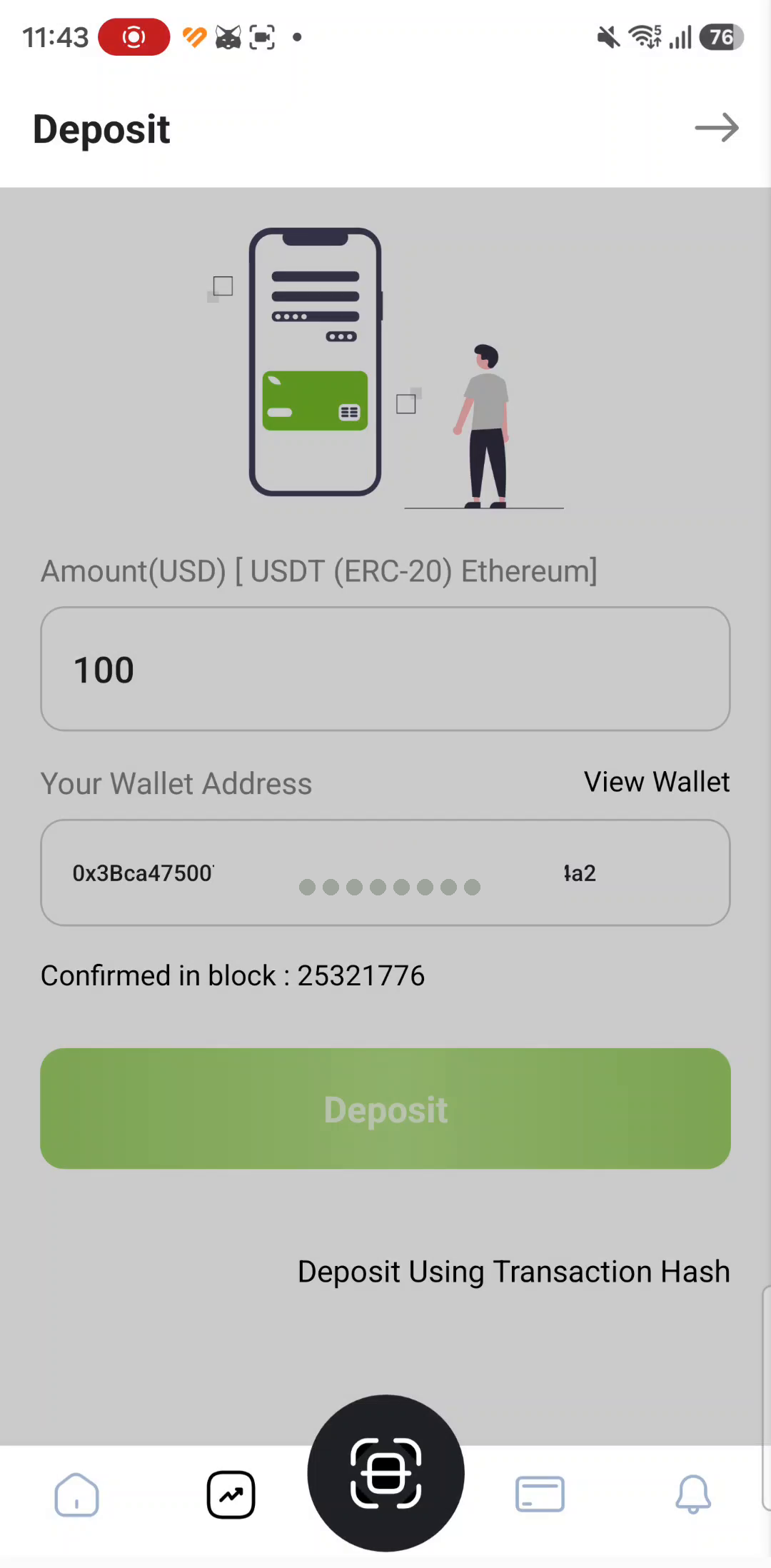
Your transaction has been included in a block. That is a real milestone, but it is not yet the end — see the three stages below. 5:46
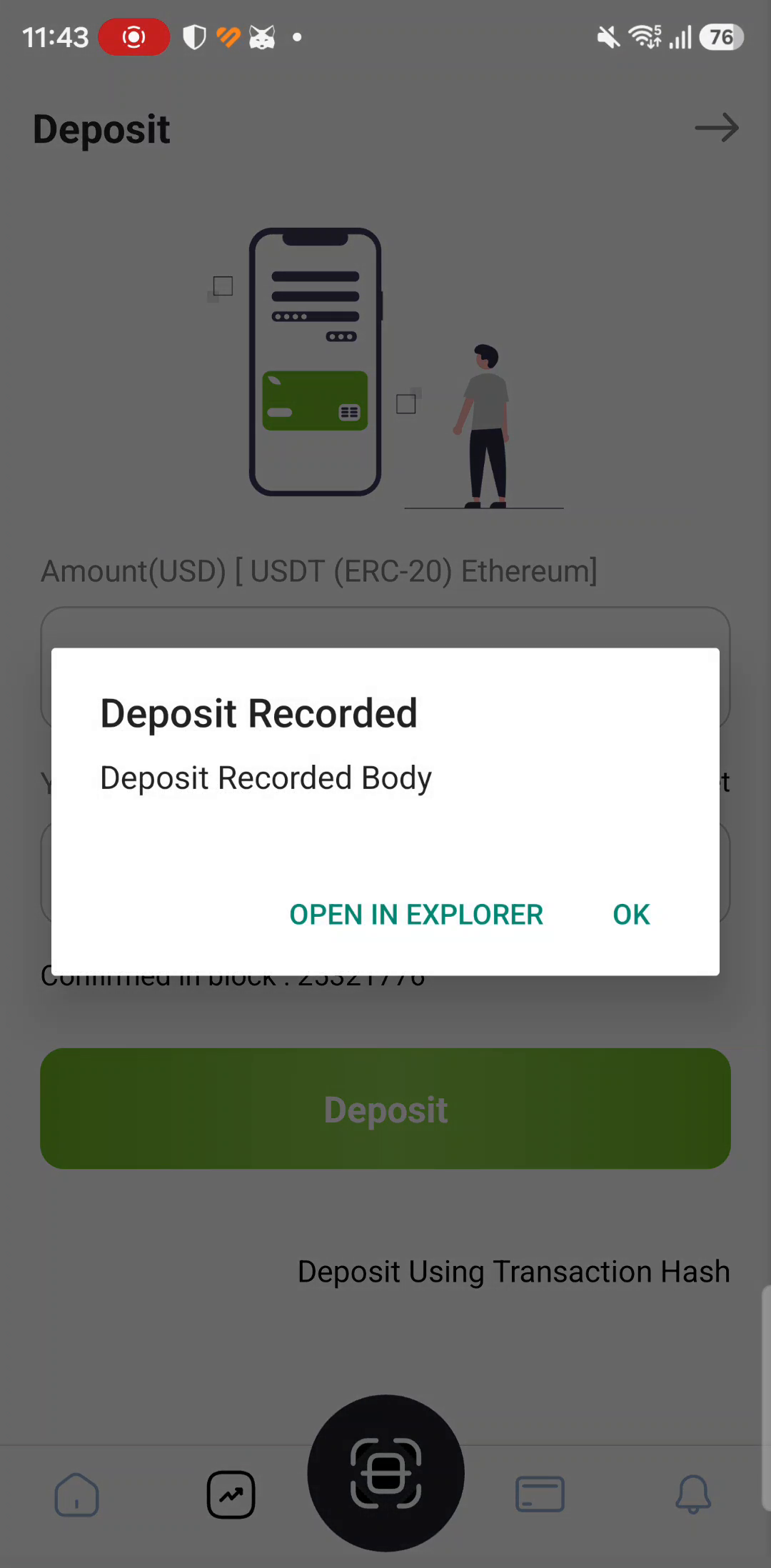
Kafel has registered the deposit against your account. OPEN IN EXPLORER shows the transaction on the network; OK closes the dialog. 5:49


Three stages, not one
These words get used interchangeably, and they should not be. Each stage is a stronger statement than the last.
-
Included in a block
A validator has put your transaction into a block. This is what Confirmed in block reports. Under Ethereum's proof-of-stake consensus a freshly included block can still, in principle, be reorganised out.
-
Finalised on the network
A little later that block is justified and then finalised. Ethereum's own documentation describes finalising as a commitment that cannot be reverted “unless an attacker destroys millions of ether”. This — not first inclusion — is the point at which the transfer is settled.
-
Recorded and credited by Kafel
Separately from all of the above, Kafel has to register the deposit and credit your balance. Deposit Recorded reports that it has registered it; the balance on the home screen is what tells you it has been credited.
Check your new balance
Go back to the Kafel home screen. Two places there show the deposit: the green balance card at the top, and the entry in Recent Transactions.

A quick check
New balance = old balance + the amount deposited. The network fee came out of the ETH in your wallet, not out of the deposit.
Keep a record
Save the transaction number and the block number. You can view the transaction on a block explorer from the OPEN IN EXPLORER button.
Depositing from a cryptocurrency exchange
No wallet needed. You withdraw USDT from the exchange directly to the deposit address Kafel gives you, then tell Kafel about it using the transaction hash. Steps 16 to 20.
How this route works
If your balance is sitting safely on an exchange rather than in a personal wallet, you do not have to install anything. The money moves from the exchange straight to the address Kafel shows you.
The money does not pass through an external wallet. It leaves your account at the exchange and arrives at a Kafel address directly. Your only remaining job is to tell Kafel the transaction number.
The exchange in the recording
The screenshots in this part come from the HTX app. The steps are the same on any exchange that supports withdrawing USDT on the Ethereum network, though button names and screen order differ.
Currency and network before anything else
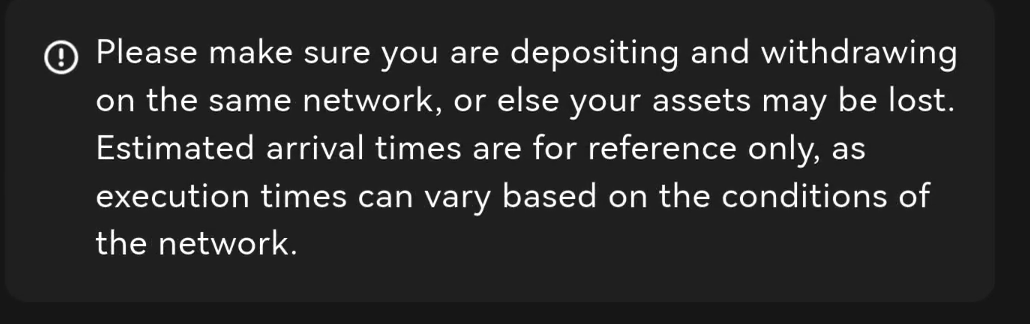
Kafel receives USDT using the ERC-20 standard on Ethereum. Choosing a different network on the exchange means sending the money down a route the address does not answer to.
Four steps, that is all
01 Copy the deposit address from Kafel · 02 Choose the currency and network on the exchange · 03 Paste the address and set the amount · 04 Record the transaction hash in Kafel
Get your deposit address from Kafel
Every deposit starts here. Kafel shows you one address on one network — and that is what you will paste into the exchange in a moment.
-
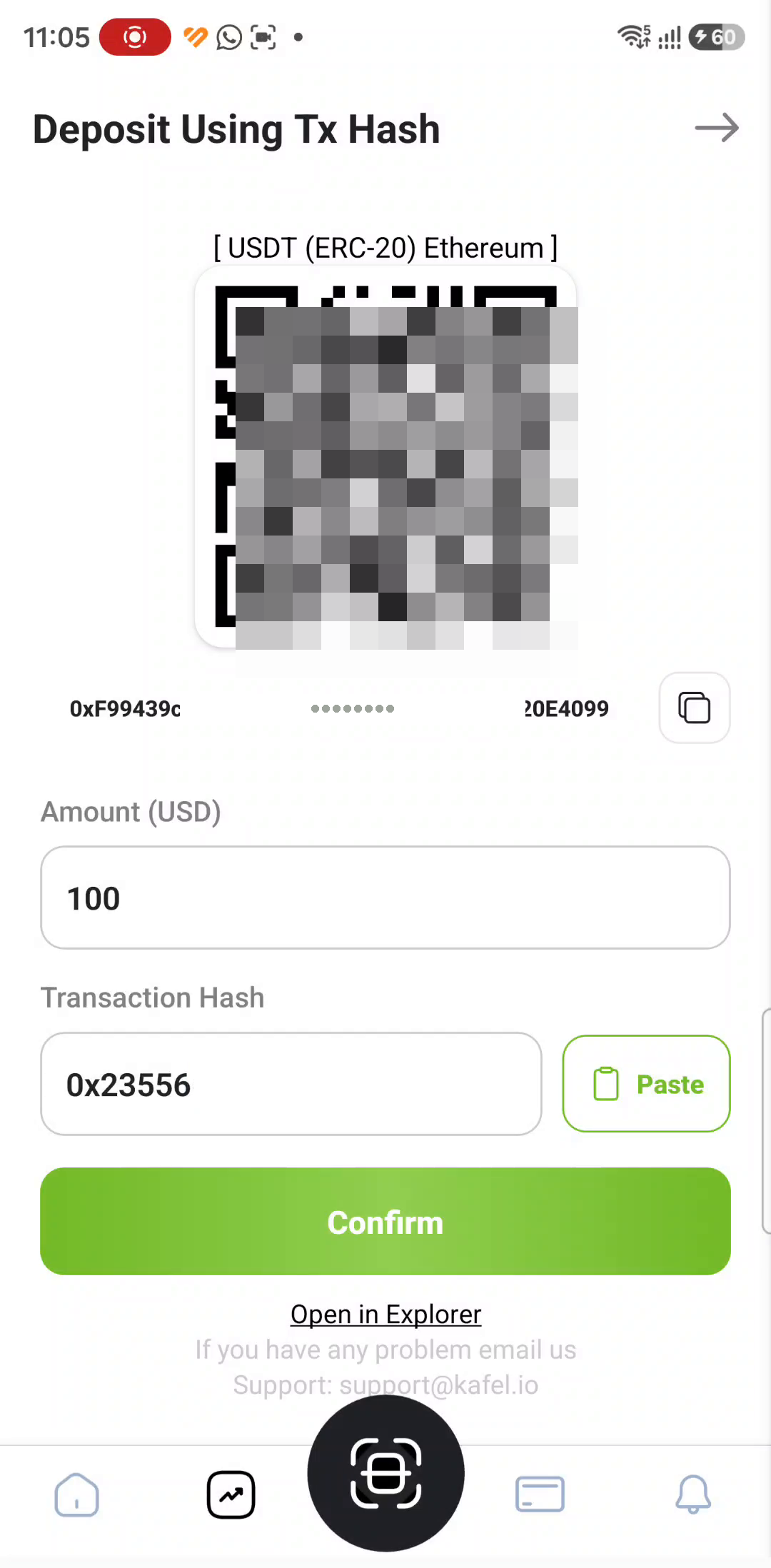
Open Deposit Using Transaction Hash
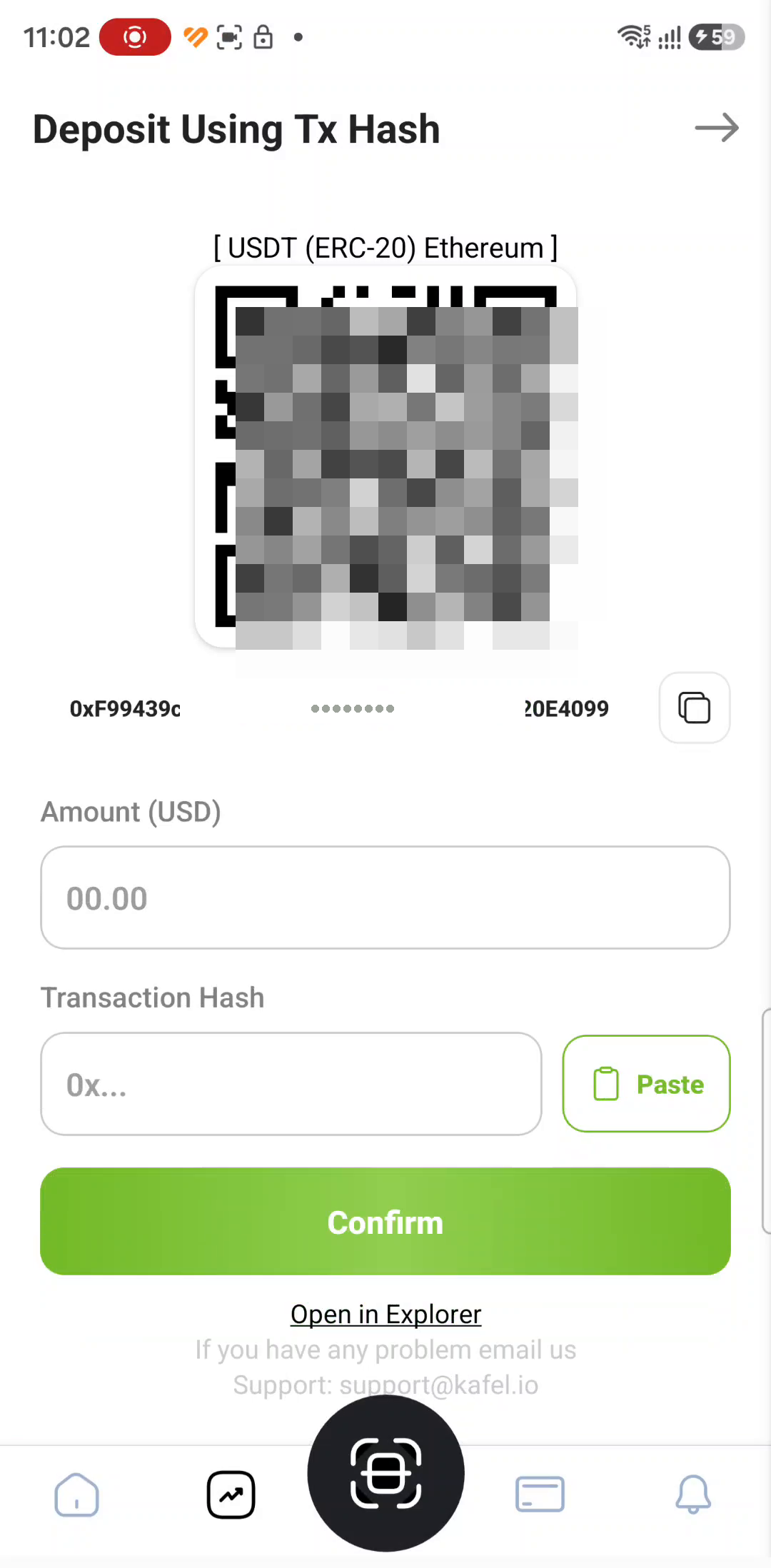
From the home screen tap Deposite to reach the deposit page, then tap the line below the green button. A screen headed Deposit Using Tx Hash opens.
-
Check the currency and the network
The top of the screen reads [ USDT (ERC-20) Ethereum ]. This is the only combination Kafel accepts on this route, and it is exactly what you will select on the exchange.
-
Copy the deposit address
Tap the copy icon beside the address. A Copied. message confirms it. You can scan the QR code from inside the exchange app instead.

Pick the currency and the network on the exchange
Move to the exchange app. Three things get decided here: the currency, the withdrawal method, and the network — and the network is the one that can cost you the money.
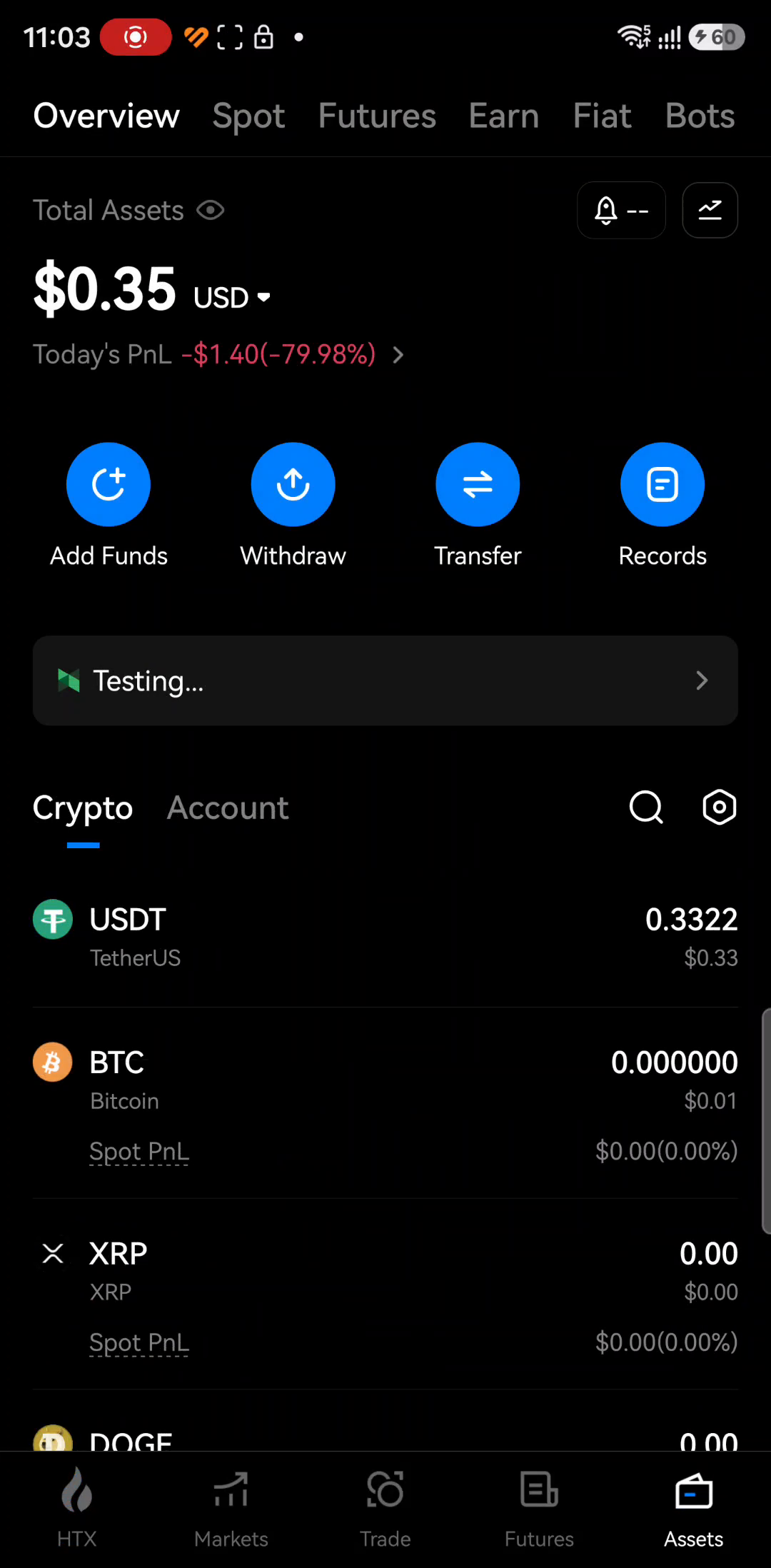
From the Assets tab in the bottom bar. 1:22
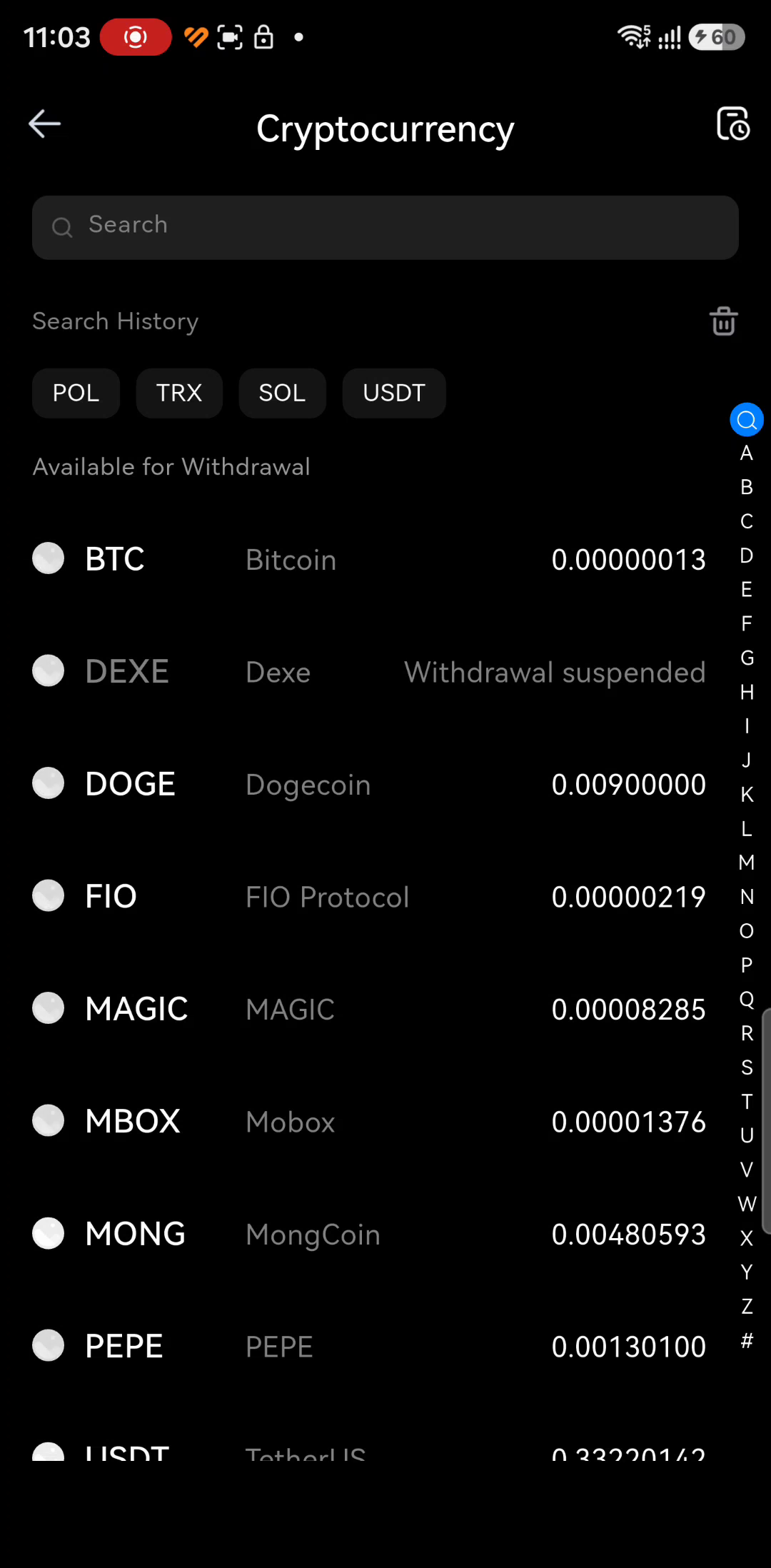
Search for it in the list of currencies available to withdraw. 1:42
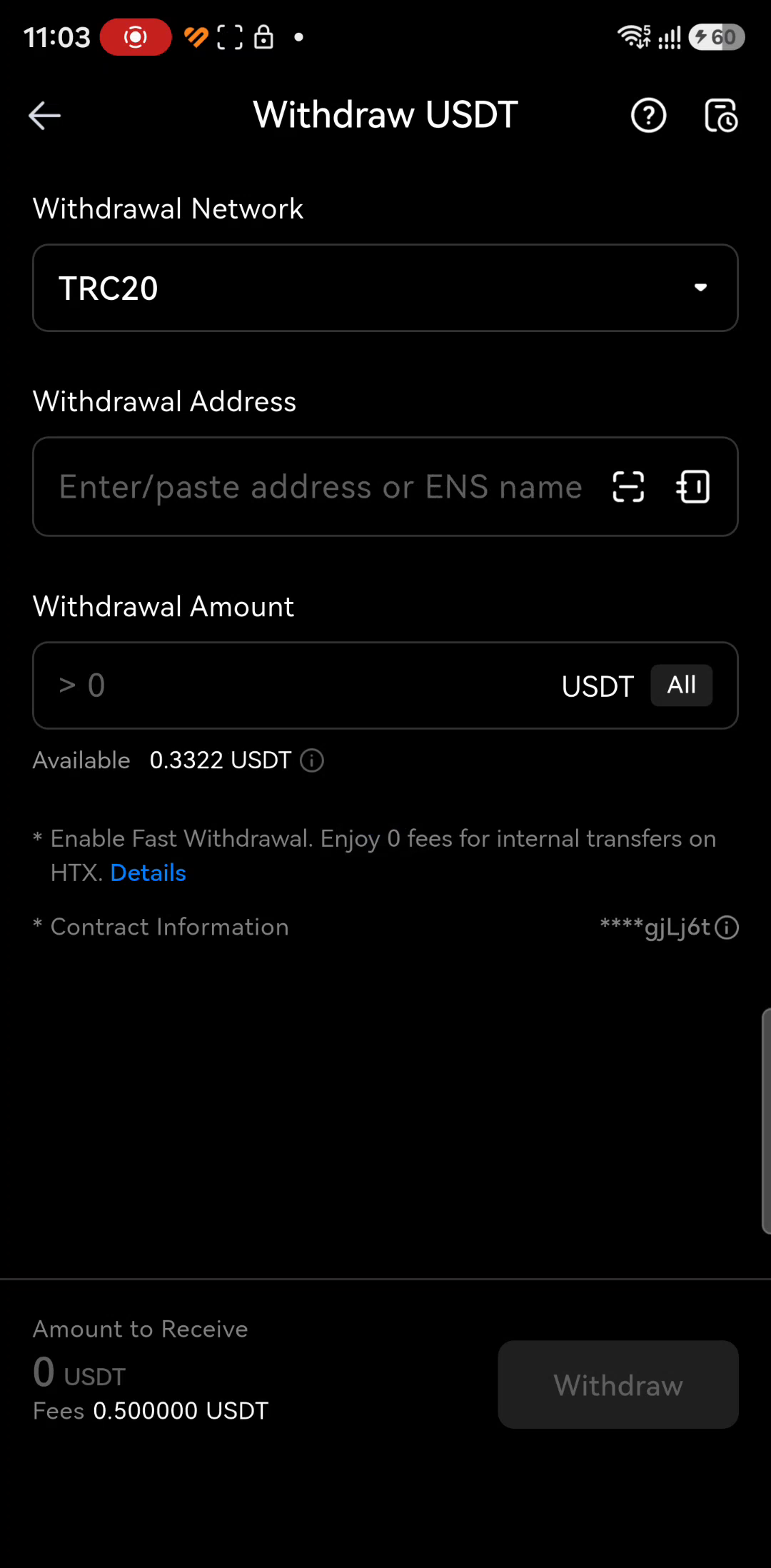
Choose Blockchain Address — withdrawing to an address on the network. 1:48
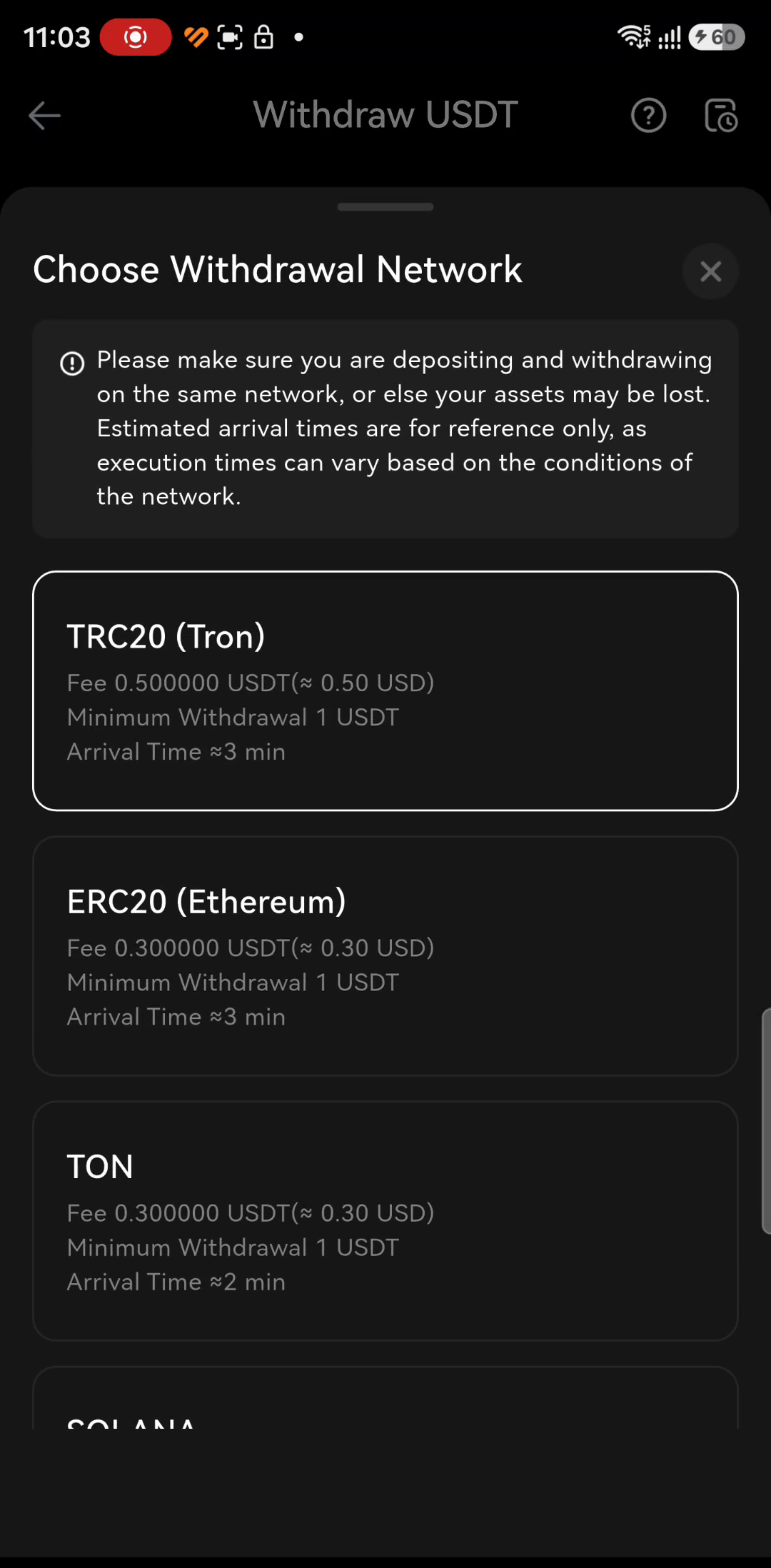
The supported networks open with the fee for each. 1:52
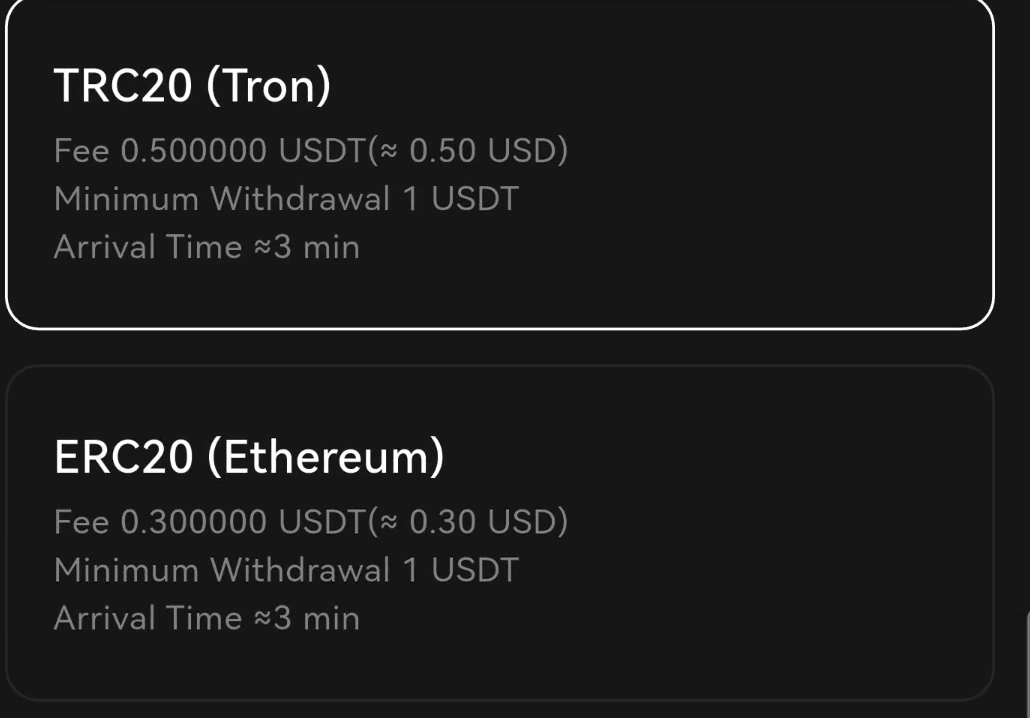
Paste the address and set the amount
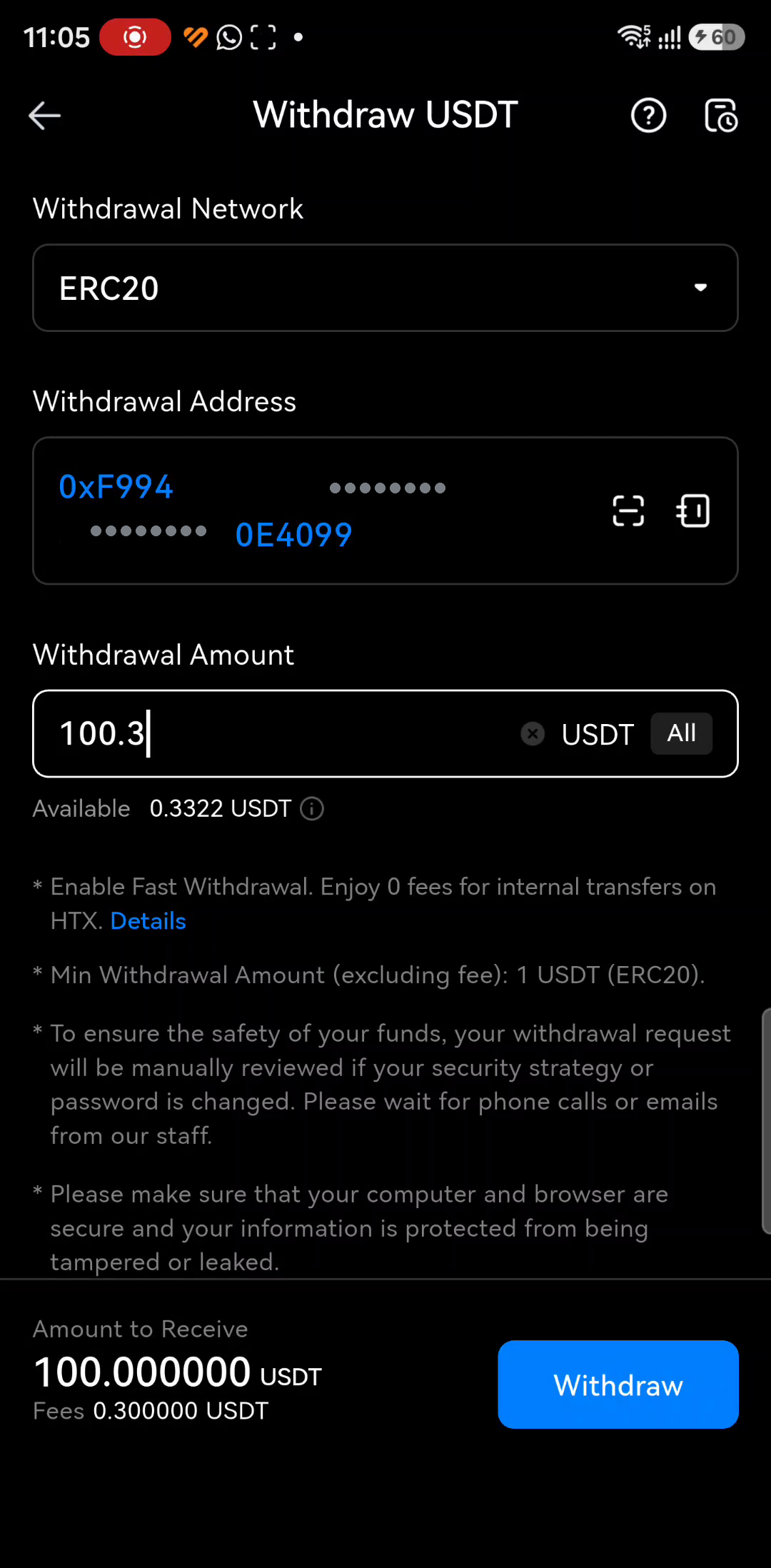
One screen brings together everything that matters: the address you copied from Kafel, the amount, the fee, and how much will actually reach the other end.
-
Paste into Withdrawal Address
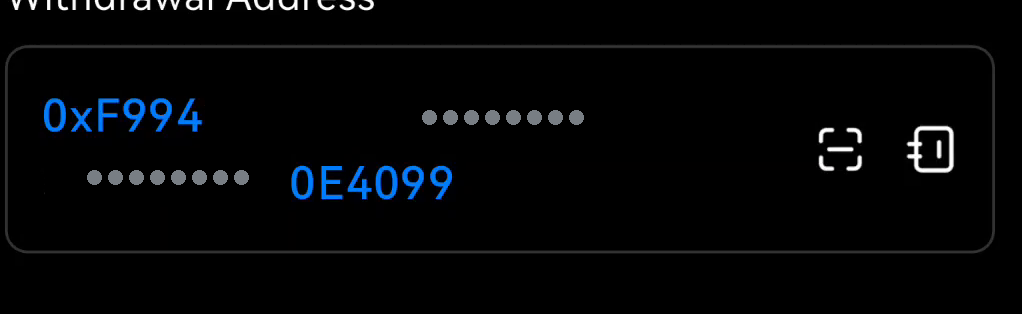
Use the paste button, or scan the QR code from the Kafel screen. Then read the pasted address against the one on your Kafel screen in full, character by character. Ethereum's own security guidance is to make sure the address you are sending to exactly matches the intended recipient's before you send — checking only the first and last few characters is not enough, because those are the easiest part to fake.
-
Enter the amount in Withdrawal Amount
Be careful: the fee is taken out of the amount you type, so less arrives than you entered. In the recording, 100.3 was typed and Amount to Receive showed 100.000000 USDT with Fees of 0.300000 USDT.
-
Review, then tap Withdraw
Confirm the network, the address and the arrival amount, then complete whatever the screen asks of you. Do not exceed the balance shown on the Available line.

Record the transaction hash in Kafel
Once the withdrawal has gone out, Kafel still needs to be told the money is yours. That is what the Transaction Hash does — a unique fingerprint proving the transfer was made on the network.
-
Get the hash from the exchange
Once the withdrawal completes it appears in the transaction history — the Records tab under Assets. Open the withdrawal and copy the transaction number.
-
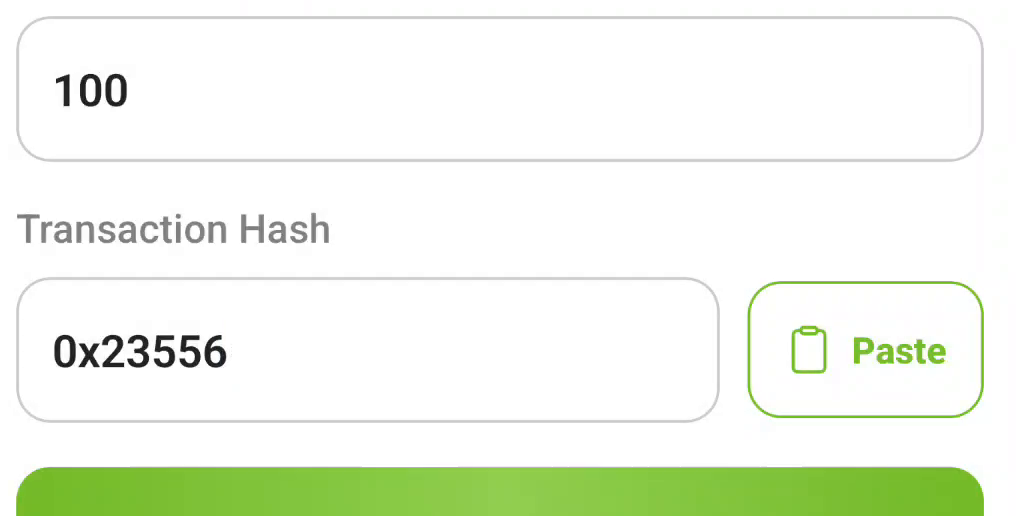
Enter the amount in Amount (USD)
Back on the Deposit Using Tx Hash screen in Kafel, enter the amount that actually arrived — the Amount to Receive figure, not the amount you withdrew.
-
Paste the hash, then tap Confirm
Use the Paste button beside the Transaction Hash field rather than typing it by hand — one missing character makes the value meaningless.
-
Follow your balance
Return to the home screen and compare the balance with the figure you noted at the start, then check Recent Transactions. The exchange also recommends reviewing your balance after every transfer.
When things do not go as expected
The four most common situations and what to do about each. The last two apply to both methods.
You tapped Connect Wallet and nothing happened
- Check MetaMask is installed on this same phone and that you have opened it at least once since installing.
- If Continue in MetaMask is stuck, tap Try again, or open MetaMask by hand to find the request.
- Close both apps and reopen them, then start again from the deposit screen.
- Never enter your recovery phrase on any screen while trying to fix a connection.
The transaction will not send, or the fee looks too high
- The network fee is paid in ETH, not in USDT. A USDT balance alone is not enough.
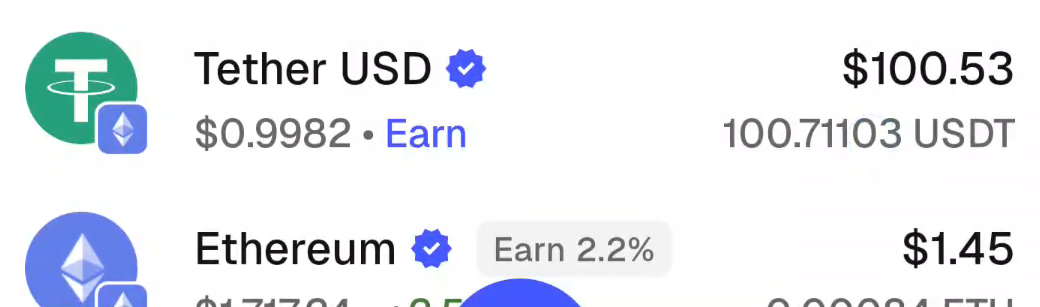
- Open the Tokens list in MetaMask and confirm you hold ETH on the Ethereum network.
- Fees move with congestion, so you may need a slightly larger margin than you expected.
It has been pending for a long time
- MetaMask's first recommendation is to close the app completely and reopen it.
- Part of it is the network's own priority system — a lower fee means a longer wait.
- MetaMask offers Speed up and Cancel for a pending transaction. Details in the Help Center — see step 22.
- Do not send the transaction a second time before you are sure about the first.
The transaction is confirmed but Kafel's balance is the same
- Close the Kafel app and reopen it, then check Recent Transactions.
- Confirm the transaction reached a block — the Confirmed in block line.
- Check the transfer was made in USDT on Ethereum. A different network does not match this route.
- Contact Kafel support from inside the app with the transaction number and the block number.
Have these ready before contacting support
The transaction number · the block number · the amount and currency · the time you sent it.
Sources and support
Everything in this guide relating to MetaMask and to the HTX exchange is verified against the official sources below. All links are clickable.
Official MetaMask links
- Official download pagemetamask.io/download
- The app on the App Storeapps.apple.com/us/app/metamask-blockchain-wallet/id1438144202
- The app on Google Playplay.google.com/store/apps/details?id=io.metamask
- Help Centersupport.metamask.io
- Security alertssupport.metamask.io/configure/wallet/security-alerts
- Creating a new walletsupport.metamask.io/start/creating-a-new-wallet
- Using an existing walletsupport.metamask.io/start/use-an-existing-wallet
- Recovery phrase, password and private keyssupport.metamask.io/start/user-guide-secret-recovery-phrase-password-and-private-keys
- Speeding up or cancelling a pending transactionsupport.metamask.io/manage-crypto/transactions/how-to-speed-up-or-cancel-a-pending-transaction
- Contacting MetaMask supportsupport.metamask.io/start/how-to-contact-metamask-support
Official HTX links
- Withdrawing from the HTX apphtx.com/support/84875727630150
- Withdrawal and choosing the networkhtx.com/support/360000193641
- Deposits and the correct networkhtx.com/support/94911251602347
- HTX Help Centerhtx.com/support
Kafel support
From inside the app
Open the app menu from the icon at the top of the home screen. The Deposit Using Tx Hash screen also shows the support address support@kafel.io. Have the transaction number, the amount and the time of sending ready.
Before contacting anyone
Check the channel is official. Never share your recovery phrase or your passwords with anybody, and never read a verification code out to a person, even one presenting themselves as support. Entering that same code yourself, in the app you opened, is a normal part of signing in.
About this guide
- Method 1 recording
- Screen_Recording_20260615_114338_MetaMask.mp4 — a real deposit on an Android phone, 6:16 long.
- Method 2 recording
- WhatsApp Video 2026-09-17 at 11.09.34.mp4 — a Kafel and HTX session on the same phone, 4:49 long.
- Screenshot timings
- Each caption carries the timestamp of the frame it came from.
- Store screenshots
- Live captures of the official MetaMask pages, September 2026.
- Privacy
- The account holder's name, the middle sections of wallet addresses and transaction hashes, and the QR code of the deposit address have all been obscured. No passwords, verification codes, recovery phrases or personal account details appear anywhere in this guide.
- Figures
- Every amount, balance and fee is an example from the moment of recording — not a limit, and not a fixed charge.
- Interfaces
- Nothing in this guide is a generated or redrawn interface presented as real app behaviour. Button names and screen order change between releases; where your screen differs, follow your screen and check the official sources above.